n8n Docker Setup: Run n8n With Docker Compose Without Losing Your Data (2026)
Set up n8n in Docker: the run command flag by flag, a tested Docker Compose file with Postgres 18, volumes that persist, safe updates and fixes.
By Ali Ilyas · · Updated October 23, 2026
The fastest n8n Docker setup is a single command, and you'll have the editor open at http://localhost:5678 in about two minutes. The part that trips people up comes later. The container restarts, and every workflow is gone. This guide covers the command, then the things that decide whether your instance survives its first update: where n8n actually stores data, which environment variables matter, and how to pin and roll back versions.
No prior Docker experience is assumed. Where a flag matters, I explain what it does rather than asking you to paste it on faith.
What's on this page
- Do you want Docker setup, or full self-hosting?
- What you'll need
- Start n8n in one command
- Where n8n stores your data
- docker run vs. Docker Compose
- A Compose file for everyday local use
- n8n Docker Compose with Postgres
- The environment variables that matter
- Updating n8n, and rolling back
- Docker Desktop on Windows and macOS
- What grows, and what to do before it does
- When SQLite stops being enough
- Common Docker errors and fixes
- Frequently asked questions
Do you want Docker setup, or full self-hosting?
These are two different jobs, and mixing them up wastes an afternoon.
This guide is about the container itself: how the n8n image runs, where it keeps state, how to update it safely, and what to do when Docker misbehaves. It applies whether you're on a laptop or a server.
Putting n8n on the public internet (a domain, HTTPS certificates, a reverse proxy, Postgres, backups, firewall rules) is a separate concern. That's covered step by step in the complete guide to self-hosting n8n.
If you just want n8n running locally to build and test workflows, stay here. If you want a URL your team can reach, read this first, then that.
One practical note if you already know you're heading for a server: everything below runs unchanged on a $5/month VPS, so there's no need to build locally and migrate later. Hetzner (2 GB for about €4.5) and DigitalOcean ($6 for 1 GB) both run this fine, and both hand new accounts enough signup credit to cover the first month or two. Spin one up now and follow along on it, because the commands are identical.
What you'll need
- Docker installed. On Linux, Docker Engine plus the Compose plugin. On Windows or macOS, Docker Desktop.
- About 1 GB of free RAM. n8n is comfortable in 2 GB once you have a few active workflows.
- A terminal. Every command below is copy-pasteable.
Verify Docker is working before going further:
docker --version
docker compose version
If the second command errors, you have an older standalone docker-compose binary. The commands still work, just write them as docker-compose instead of docker compose.
Start n8n in one command
Create a volume for n8n's data, then start the container:
docker volume create n8n_data

docker run -it --rm \
  --name n8n \
  -p 5678:5678 \
  -e GENERIC_TIMEZONE="Europe/Berlin" \
  -e TZ="Europe/Berlin" \
  -e N8N_ENFORCE_SETTINGS_FILE_PERMISSIONS=true \
  -v n8n_data:/home/node/.n8n \
  docker.n8n.io/n8nio/n8n
Open http://localhost:5678 and create your owner account.
What each part does:
-p 5678:5678maps the container's port to your machine. Change the left number if 5678 is taken:-p 8080:5678serves n8n onhttp://localhost:8080.GENERIC_TIMEZONEsets the timezone for schedule-based nodes. Get this wrong and your Schedule Trigger fires at the wrong hour.TZsets the timezone for the operating system inside the container, which affects log timestamps. Set both, to the same value.N8N_ENFORCE_SETTINGS_FILE_PERMISSIONS=truelocks down the config file that holds your encryption key.-v n8n_data:/home/node/.n8nis the important one. See the next section.
Two flags deserve a warning. -it attaches the container to your terminal, so closing that terminal stops n8n. --rm deletes the container when it stops. That combination is right for trying n8n out and wrong for anything you care about. For a container that keeps running, drop both and add -d:
docker run -d --name n8n --restart unless-stopped \
  -p 5678:5678 \
  -e GENERIC_TIMEZONE="Europe/Berlin" \
  -e TZ="Europe/Berlin" \
  -v n8n_data:/home/node/.n8n \
  docker.n8n.io/n8nio/n8n
--restart unless-stopped brings n8n back after a reboot or a crash.
On n8n 1.x, add
-e N8N_RUNNERS_ENABLED=true. Task runners are how n8n executes code nodes, and on the 1.x line you have to opt in. From version 2.0 the variable is deprecated and you no longer need to set it. If you're on 2.0 or later and copied an older tutorial, you can drop it.
Where n8n stores your data
n8n keeps everything in /home/node/.n8n inside the container. That directory holds:
- the SQLite database with your workflows, credentials, and execution history
- the encryption key that your saved credentials are encrypted against
- instance settings
Containers are disposable. Anything written inside one that isn't mapped to a volume disappears when the container is removed, and docker run --rm, docker rm, and most update procedures all remove containers. This is the single most common way people lose an n8n instance.
The -v n8n_data:/home/node/.n8n flag maps a Docker-managed named volume to that directory, so the data lives outside the container's lifecycle. Confirm it exists:
docker volume inspect n8n_data
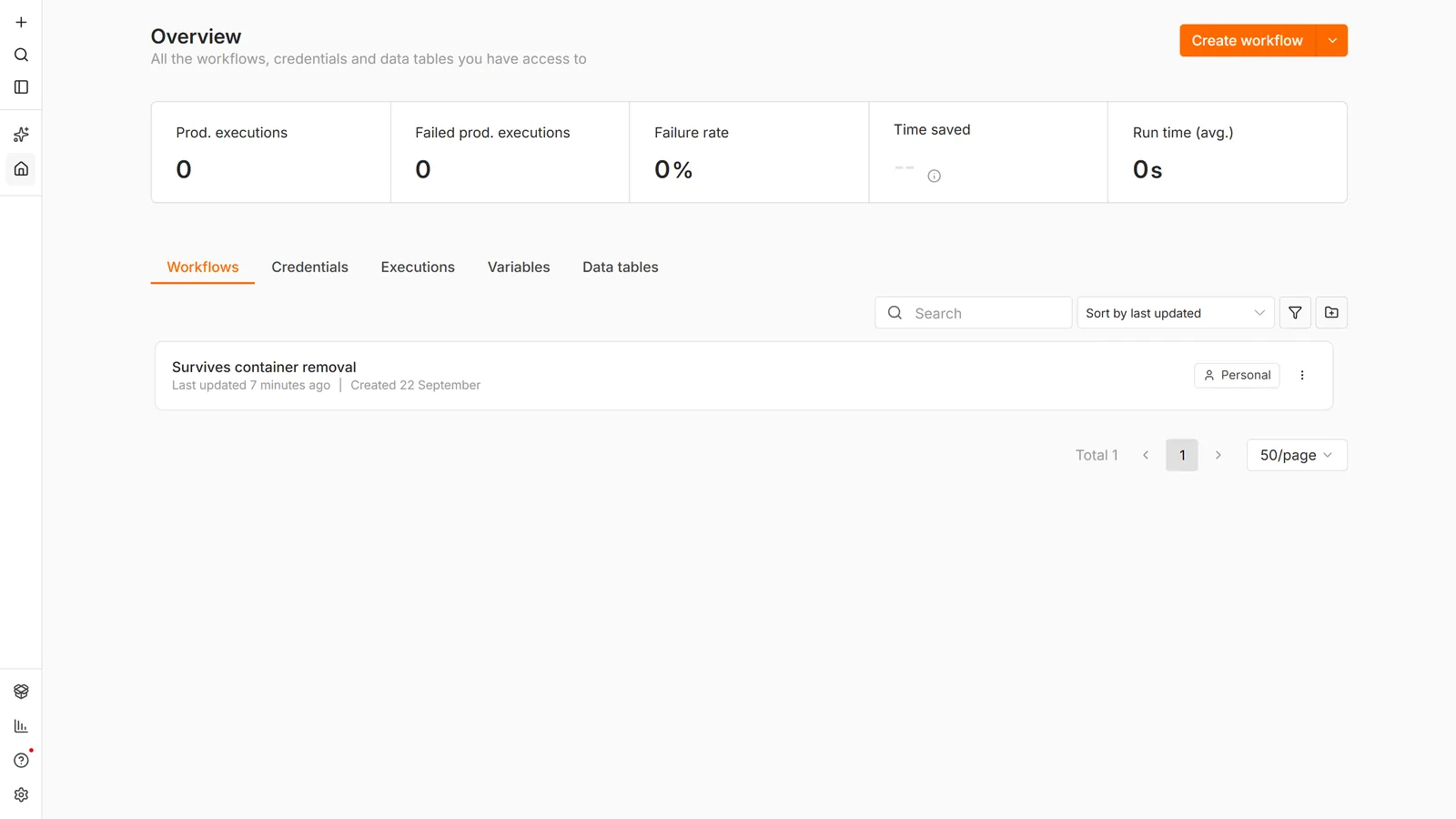
The encryption key detail is worth dwelling on. Your credentials are encrypted with a key stored in that directory. Lose the volume and you don't just lose workflows. Every saved credential becomes undecryptable, even if you have a database backup. Restoring means re-entering every API key by hand.
You can use a bind mount instead, pointing at a folder you can see:
-v ~/n8n-data:/home/node/.n8n
That makes backups as easy as copying a folder, but it introduces a permissions problem on Linux, covered in common errors below. Named volumes are the lower-friction default; bind mounts are better when you want direct file access.
docker run vs. Docker Compose
A long docker run command is fine once. It stops being fine the moment you need to remember it.
docker run | Docker Compose | |
|---|---|---|
| Trying n8n for ten minutes | Good | Overkill |
| Keeping an instance around | Painful — you must retype every flag | Good |
| Adding Postgres or Redis | Manual networking | Handles it |
| Updating | Stop, remove, retype the command | pull then up -d |
| Config lives in | Your shell history | A file you can version-control |
Anything you intend to keep belongs in Compose. The configuration becomes a file you can read, diff, and back up, instead of a command you half-remember.
A Compose file for everyday local use
Create a folder, add a docker-compose.yml, and start it. This setup uses SQLite, which is the right choice for local development and light use:
services:
  n8n:
    image: docker.n8n.io/n8nio/n8n
    container_name: n8n
    restart: unless-stopped
    ports:
      - "5678:5678"
    environment:
      - GENERIC_TIMEZONE=Europe/Berlin
      - TZ=Europe/Berlin
      - N8N_ENFORCE_SETTINGS_FILE_PERMISSIONS=true
    volumes:
      - n8n_data:/home/node/.n8n

volumes:
  n8n_data:
Start it, and watch the logs:
docker compose up -d
docker compose logs -f
Press Ctrl+C to stop following the logs. The container keeps running. To stop n8n itself:
docker compose down
down removes the container but not the named volume, so your workflows survive. Adding -v to that command deletes the volume too, which is the destructive version. Don't type docker compose down -v on an instance you care about.
SQLite is fine locally but not what you want under real load. The next file swaps it for Postgres.
n8n Docker Compose with Postgres
This is the setup to keep: n8n and Postgres in one file, with the passwords in a separate .env. It follows n8n's own example in the n8n-hosting repository, minus two extras that example adds, a non-root database user created by an init script and a separate task-runner container. We ran these exact files on n8n 2.44.6 and Postgres 18.6 before publishing them.
Create a folder with two files. First .env, which Compose reads automatically from the same folder:
N8N_VERSION=2.44.6
POSTGRES_USER=n8n
POSTGRES_PASSWORD=change-this-password
POSTGRES_DB=n8n
Then docker-compose.yml:
services:
  postgres:
    image: postgres:18
    restart: unless-stopped
    environment:
      - POSTGRES_USER=${POSTGRES_USER}
      - POSTGRES_PASSWORD=${POSTGRES_PASSWORD}
      - POSTGRES_DB=${POSTGRES_DB}
      - PGDATA=/var/lib/postgresql/data
    volumes:
      - db_data:/var/lib/postgresql/data
    healthcheck:
      test: ["CMD-SHELL", "pg_isready -h localhost -U ${POSTGRES_USER} -d ${POSTGRES_DB}"]
      interval: 5s
      timeout: 5s
      retries: 10

  n8n:
    image: docker.n8n.io/n8nio/n8n:${N8N_VERSION}
    restart: unless-stopped
    ports:
      - "5678:5678"
    environment:
      - GENERIC_TIMEZONE=Europe/Berlin
      - TZ=Europe/Berlin
      - N8N_ENFORCE_SETTINGS_FILE_PERMISSIONS=true
      - DB_TYPE=postgresdb
      - DB_POSTGRESDB_HOST=postgres
      - DB_POSTGRESDB_PORT=5432
      - DB_POSTGRESDB_DATABASE=${POSTGRES_DB}
      - DB_POSTGRESDB_USER=${POSTGRES_USER}
      - DB_POSTGRESDB_PASSWORD=${POSTGRES_PASSWORD}
    volumes:
      - n8n_data:/home/node/.n8n
    depends_on:
      postgres:
        condition: service_healthy

volumes:
  db_data:
  n8n_data:
Start it and check both services:
docker compose up -d
docker compose ps
What the parts do:
depends_onwithcondition: service_healthyholds n8n back untilpg_isreadysucceeds, so n8n never connects to a database that is still starting. In our run, Compose started n8n only after Postgres reported healthy.N8N_VERSIONpins the n8n image. When we checked on 23 October 2026, thelatestandstabletags both pointed to 2.44.6. Check the tag list and move the number up when you choose to, not whenever a pull happens to run.- Each service gets its own named volume.
db_dataholds the database.n8n_datastill matters on Postgres, because it holds the encryption key your saved credentials depend on (see where n8n stores your data). - Change the password in
.envbefore the first start. The Postgres image only appliesPOSTGRES_USERandPOSTGRES_PASSWORDwhen it initialises an empty data directory, so editing.envafterwards does not change the password the database already has.
Keep the PGDATA line if you use Postgres 18. The postgres:18 image moved its default data directory to /var/lib/postgresql/18/docker, while Compose files written for earlier versions mount the volume at the old path, /var/lib/postgresql/data. We deleted the PGDATA line and started the same file on an empty volume. Postgres refused to start and went into a restart loop, logging this:
Error: in 18+, these Docker images are configured to store database data in a
       format which is compatible with "pg_ctlcluster" (specifically, using
       major-version-specific directory names).
Pinning PGDATA to the mount point keeps the old path working, and n8n's example does the same. If you already run postgres:16, as the file in our self-hosting guide does, you can stay on it. Moving to 18 is a major-version upgrade: n8n's README for this example says 18 cannot read a data directory written by 16, and it walks through a dump and restore.
What we checked on the running stack:
| Check | Result |
|---|---|
| Versions running | n8n 2.44.6, PostgreSQL 18.6 |
| Where n8n stored its data | 160 tables in Postgres, no database.sqlite in /home/node/.n8n |
Owner account plus one workflow, then docker compose down and docker compose up -d | both volumes kept, the login worked, the workflow came back |
The same file without the PGDATA line, on an empty volume | Postgres restart loop with the error above |
The warning from the SQLite file applies here with more at stake: docker compose down -v deletes both volumes, the database and the encryption key together.
Moving an existing SQLite instance onto this file is not automatic. Pointing n8n at an empty Postgres gives you an empty n8n, so export your workflows and credentials first. To put the instance on a public URL with HTTPS, add a reverse proxy in front of it, which the self-hosting guide covers.
The environment variables that matter
There are well over a hundred. These are the ones that change outcomes:
| Variable | Why you'd set it |
|---|---|
GENERIC_TIMEZONE | Timezone for Schedule Trigger and other time-based nodes. Wrong value = jobs at the wrong hour. |
TZ | Operating-system timezone in the container. Affects log timestamps. Match it to GENERIC_TIMEZONE. |
N8N_ENCRYPTION_KEY | Sets the credential encryption key explicitly instead of letting n8n generate one. Useful when you need reproducible deployments. |
N8N_SECURE_COOKIE | Defaults to true, which means the session cookie is only sent over HTTPS. Accessing n8n over plain http:// on anything other than localhost will fail to log in until you set this to false. |
N8N_ENFORCE_SETTINGS_FILE_PERMISSIONS | Restricts permissions on the settings file holding your encryption key. |
N8N_PORT | Changes the port inside the container. Usually unnecessary — remap with -p instead. |
N8N_RUNNERS_ENABLED | Required as true on 1.x to enable task runners. Deprecated from 2.0 onward. |
To use Postgres instead of SQLite, add:
DB_TYPE=postgresdb
DB_POSTGRESDB_HOST=postgres
DB_POSTGRESDB_PORT=5432
DB_POSTGRESDB_DATABASE=n8n
DB_POSTGRESDB_USER=n8n
DB_POSTGRESDB_PASSWORD=your-password
Even on Postgres, keep the /home/node/.n8n volume mounted. The database moves to Postgres, but the encryption key and instance settings still live in that directory.
Updating n8n, and rolling back
The image tag you use decides how much control you have. docker.n8n.io/n8nio/n8n with no tag means latest, so every pull can move you forward by an unknown amount. For anything you depend on, pin a specific version:
image: docker.n8n.io/n8nio/n8n:2.44.6
Back up before updating. With a named volume, the quickest snapshot is a tarball:
docker run --rm -v n8n_data:/data -v "$PWD":/backup alpine \
  tar czf /backup/n8n-backup.tar.gz -C /data .
Then update:
docker compose pull
docker compose down
docker compose up -d
Rolling back is why pinning matters: change the tag in docker-compose.yml back to the previous version and run docker compose up -d again. On latest, you have no easy way to name the version that was working.
Check what you're actually running:
docker compose logs n8n | head -20
Docker Desktop on Windows and macOS
The commands are identical, with three differences worth knowing.
Localhost works as expected. http://localhost:5678 reaches the container.
Bind mounts are slower. File operations across the Windows or macOS boundary carry overhead. Named volumes are meaningfully faster on these platforms, which is another reason to prefer them.
On Windows, keep files inside WSL2. If you use bind mounts, put the project folder in the WSL2 filesystem (\\wsl$\...) rather than under C:\Users\.... Crossing the filesystem boundary is slow and causes intermittent permission oddities.
What grows, and what to do before it does
Nothing in a first-day Docker setup hints at this, and it is the most common reason a working n8n instance stops working weeks later: the disk fills up.
Three separate things accumulate, and they are easy to confuse.
1. Saved execution data. n8n stores the complete data payload of every execution by default, not a summary. Pruning is enabled, but the defaults keep a lot:
| Variable | Default | Meaning |
|---|---|---|
EXECUTIONS_DATA_PRUNE | true | Rolling deletion is on |
EXECUTIONS_DATA_MAX_AGE | 336 | Keep 14 days |
EXECUTIONS_DATA_PRUNE_MAX_COUNT | 10000 | Keep 10,000 executions |
EXECUTIONS_DATA_SAVE_ON_SUCCESS | all | Full payload of every success |
Set this on day one and you will never think about it again:
EXECUTIONS_DATA_SAVE_ON_SUCCESS=none
EXECUTIONS_DATA_SAVE_ON_ERROR=all
EXECUTIONS_DATA_MAX_AGE=168
2. Old Docker images. Every docker compose pull downloads a new image and leaves the previous
one on disk. Several updates in, that is several GB unrelated to your data, and it surprises people
who check their volumes, find them small, and conclude the disk report is wrong.
3. Binary files. Workflows handling attachments or downloads write them to disk. These are not covered by execution pruning.
Diagnose in this order:
df -h                    # is the disk genuinely full
docker system df         # images vs containers vs volumes
docker image prune -a    # remove images no container uses
One thing that surprises everyone: deleting execution data does not shrink the database file. SQLite and Postgres mark the space reusable rather than handing it back to the operating system, so usage plateaus instead of dropping. Clearing Docker images is usually the faster win when you are already out of room.
When SQLite stops being enough
The default Docker setup uses SQLite, and for a single instance running modest workflows it is genuinely fine. It stops being fine in a specific, recognisable way.
The symptom is SQLITE_BUSY: database is locked. SQLite permits one writer at a time. When
several executions finish simultaneously, or a long-running workflow holds a write open, others queue
and eventually error. It is not corruption and not a bug. It is the concurrency ceiling being hit.
You will meet it when workflows overlap, when execution volume climbs, or when a large database makes each write slower. Switch to Postgres at that point:
DB_TYPE=postgresdb
DB_POSTGRESDB_HOST=postgres
DB_POSTGRESDB_DATABASE=n8n
DB_POSTGRESDB_USER=n8n
DB_POSTGRESDB_PASSWORD=your-password
Migrating is not automatic. Pointing n8n at an empty Postgres gives you an empty n8n. The container starts cleanly and your workflows are simply not there, which reads alarmingly like data loss. Export your workflows and credentials first, switch the database, then import. Keep the SQLite volume until you have confirmed everything arrived.
Queue mode is a different thing again, and further along: it distributes executions across worker processes and needs Redis. Postgres is about write concurrency; queue mode is about execution concurrency, and you nearly always want the first before the second.
Common Docker errors and fixes
All my workflows disappeared after a restart.
The container ran without a volume mapped to /home/node/.n8n. Unless you had a backup, that data is gone, because containers don't keep filesystem changes after removal. Add -v n8n_data:/home/node/.n8n and rebuild. Verify with docker volume inspect n8n_data before you invest hours in building workflows.
EACCES: permission denied writing to /home/node/.n8n.
This hits bind mounts on Linux. The n8n container runs as the node user (UID 1000), and your host folder is owned by someone else. Fix ownership on the host:
sudo chown -R 1000:1000 ~/n8n-data
Named volumes don't have this problem, which is the main argument for them.
port is already allocated on 5678.
Something else holds the port, often a previous n8n container. Find it:
docker ps -a | grep 5678
Remove the old container, or remap: -p 8080:5678.
I can't log in and the page reloads back to the sign-in screen.
You're reaching n8n over plain http:// on a LAN IP or hostname. N8N_SECURE_COOKIE defaults to true, so the session cookie is only sent over HTTPS and never comes back. For local network use, set N8N_SECURE_COOKIE=false. Don't do that on a public server. Set up HTTPS properly instead.
The container exits immediately. Read the logs, which almost always name the cause:
docker logs n8n
Malformed environment variables and unreachable database hosts are the usual culprits.
The container restarts in a loop.
docker compose ps shows it cycling and docker compose logs names the reason. Three common
causes: a database it cannot reach (wrong host, or Postgres still starting, so add a healthcheck rather
than a sleep), a changed N8N_ENCRYPTION_KEY it cannot decrypt credentials with, or the host being
out of memory so the kernel kills it shortly after each start. The last one is invisible in n8n's own
logs; check dmesg | tail.
SQLITE_BUSY: database is locked.
SQLite allows one writer at a time and concurrent executions are colliding. Reduce overlap, or move
to Postgres. See when SQLite stops being enough above.
Webhooks show a localhost URL that external services can't reach.
Expected: n8n advertises the address it thinks it has. For webhooks reachable from the internet you need a public URL and the N8N_WEBHOOK_URL variable (WEBHOOK_URL before n8n 2.30), which is part of putting n8n on a real domain. The webhook tutorial covers what that setting changes from the caller's side, including why a service can fail verification against the internal URL without saying so.
Frequently asked questions
Is the Docker version of n8n free?
Yes. The image is the Community Edition, which is free to self-host with unlimited workflow executions. Some features (SSO, projects, Git version control) are licensed separately, and the licence limits what you can do commercially. Is n8n free? covers the feature and cost lists, which licence you need covers the commercial restrictions. If you are weighing the server bill against a SaaS subscription, n8n vs Zapier pricing has the worked math: Zapier bills per step, n8n per workflow run, and that one difference decides the answer.
Do I need Docker Compose, or is docker run enough?
docker run is enough to try it. Use Compose for anything you keep. It turns a command you have to remember into a file you can back up.
Can I run n8n in Docker on a Raspberry Pi?
Yes, on 64-bit ARM hardware with enough RAM. A Pi 4 with 2 GB handles light workloads.
How do I move an instance to another machine?
Copy the /home/node/.n8n volume contents, including the encryption key. Move the database without the key and your credentials will be unreadable.
Where does n8n store workflows in Docker?
In the SQLite database inside /home/node/.n8n, unless you configured Postgres, in which case workflows live in Postgres, while the encryption key and settings remain in that directory.
The container restarts in a loop.
Read docker logs <container> before changing anything, because the reason is almost always in the first twenty lines. Two causes dominate. One is permissions on the mounted volume: the image runs as user node, UID 1000, and cannot write to a host directory owned by root, so it dies on startup. chown -R 1000:1000 the directory, or use a named volume and let Docker own it. The other is a database it can't reach or can't migrate, which the log says plainly.
n8n won't start against a fresh database.
An empty database has no schema until n8n migrates it, and that only happens if the credentials can create tables. Grant the n8n user ownership of its own database rather than table-level rights on a database someone else owns. And if you've just switched from SQLite to Postgres, note that the new database really is empty: workflows don't follow the connection string, you export and import them.
Can I run n8n on a Synology or another NAS?
Yes, through the NAS's Container Manager, with the same two requirements as anywhere else: a persistent volume mapped to /home/node/.n8n, and a public HTTPS route if you want webhooks to reach you. The NAS-specific trap is that these UIs commonly run containers as root, which creates a .n8n directory the container can't write to after a later update changes the user. Set the user explicitly at creation rather than fixing it afterwards.
Why did my disk fill up when my workflows are tiny?
Saved execution data, old Docker images, or binary files, in that order of likelihood. n8n keeps the
full payload of up to 10,000 successful executions for 14 days by default. Set
EXECUTIONS_DATA_SAVE_ON_SUCCESS=none, then run docker system df and docker image prune -a
to clear images left behind by past updates.
I deleted old executions but nothing was freed. Why?
Databases reuse deleted space internally rather than returning it to the operating system, so the file does not shrink. Clearing unused Docker images is usually the quicker way to recover room.
What does SQLITE_BUSY: database is locked mean?
SQLite allows one writer at a time and your executions are overlapping. Reduce concurrency or migrate to Postgres. It signals a concurrency ceiling, not corruption.
Can I switch from SQLite to Postgres without losing my workflows?
Not by changing the variables alone. Pointing n8n at an empty Postgres gives you an empty n8n, which looks like data loss but isn't. Export workflows and credentials first, switch, import, and keep the old volume until you have verified.
My container restarts over and over. How do I find out why?
docker compose logs n8n --tail=50. Usually an unreachable database, a changed encryption key, or
the host running out of memory. The last leaves nothing in n8n's logs, so check dmesg | tail.
Should I pin a version instead of using :latest?
Yes, for anything you rely on. With :latest an unrelated restart can pull a new major version at
the worst moment. Pinning makes upgrading a decision. Update often regardless: n8n published 39
security advisories on 2026-07-22, 21 of them high severity.
Official references worth bookmarking: n8n's Docker installation docs and Docker's own guide to volumes.
Ready to build? The docker-compose.yml files above are complete, so copy them straight out of this page. For workflows to run on top of it, our n8n workflow templates include eight importable starters, including an error handler and a heartbeat monitor. Taking this to a real server with a domain and HTTPS? That's the complete self-hosting walkthrough. If you have n8n running but are still finding your way around the editor, what n8n actually is starts from first principles.