How to Self-Host n8n: A Complete Beginner's Guide (2026)
Set up self-hosted n8n with Docker, Postgres and HTTPS. Understand hosting responsibilities, backups and common errors before running your own instance.
By Ali Ilyas · · Updated September 29, 2026
Self-hosting n8n means running the application on infrastructure you manage. This guide uses Docker Compose, PostgreSQL and Caddy to build an HTTPS-enabled instance on a VPS, then covers updates, backups and troubleshooting. You take responsibility for the server and its data as well as the workflows running on it.
Before choosing self-hosting, decide how you will handle these jobs:
| Responsibility | What to plan | Relevant section |
|---|---|---|
| Public access | Domain, HTTPS and access controls | HTTPS with Caddy and instance security |
| Recovery | Database backups, configuration and encryption-key storage; a restore test before relying on the backup | Updates and backups |
| Maintenance | Software updates and a way to notice failures | Patching and common errors |
| Capacity | Disk retention, memory and room for your workload to grow | Disk use and server sizing |
Commands are provided, but operating the instance requires more than completing the installation. Compare self-hosting with n8n Cloud before starting. If workflow concepts are new to you, the beginner guide explains them separately.
What's on this page
- Self-hosted vs. n8n Cloud: which do you need?
- What you'll need
- Where to host n8n (VPS comparison)
- Quick start: run n8n in one command
- Production setup with Docker Compose
- The environment variables that matter
- Adding HTTPS with Caddy
- Keeping n8n running, updated, and backed up
- The disk fills up, and this is why
- What size server you actually need
- Securing your instance
- Patching is now your job
- Common errors and fixes
- Frequently asked questions
Self-hosted vs. n8n Cloud: which do you need?
Before you spin up a server, be honest about which path fits you. n8n offers a paid cloud plan and a free, source-available self-hosted option (the Community Edition). Here's the trade-off:
| Factor | Self-hosted (Community) | n8n Cloud |
|---|---|---|
| Price | ~$5/mo server, unlimited executions | From ~$24/mo, metered executions |
| Data location | Your server, your control | n8n's managed infrastructure |
| Maintenance | You handle updates & backups | Fully managed |
| Setup time | ~30 min (this guide) | Minutes |
| Custom nodes / npm packages | Full control | Limited |
| Best for | Developers, high-volume, privacy needs | Non-technical users, teams who want zero ops |
Choose self-hosting if you run a lot of executions, want your data on infrastructure you control, or need custom community nodes. Choose Cloud if you never want to think about servers. If your automations make you money and your time is worth more than $20/month, managed hosting is the cheaper option however it looks on the invoice. The rest of this guide covers self-hosting.
What you'll need
- A VPS (virtual private server), roughly $5/month. See the comparison below.
- SSH access to that server (a terminal on Mac/Linux, or a client like PuTTY/Windows Terminal on Windows).
- A domain or subdomain you can point at the server (e.g.
n8n.yourdomain.com). This is required for HTTPS and for webhooks to work reliably. - About 30 minutes.
You do not need to know Docker beforehand, because every command is provided.
Where to host n8n (VPS comparison)
Any Linux server with 1 GB of RAM will run a small n8n instance, but 2 GB is more comfortable once you have a few active workflows. These are the popular, budget-friendly options:
| Provider | Entry price | RAM | Best for |
|---|---|---|---|
| Hetzner Cloud | ~€4.5/mo | 2–4 GB | Best price-to-performance (EU/US regions) |
| DigitalOcean | $6/mo | 1 GB | Beginner-friendly UI, great docs |
| Railway | Usage-based | Scales | Fastest setup, no server management |
| Home server / Raspberry Pi | $0 | Varies | Tinkering, LAN-only automations |
For most people starting out, Hetzner's CX22 (2 GB RAM) or a DigitalOcean basic droplet is the sweet spot. Pick Ubuntu 24.04 LTS as the operating system when you create the server.
Two notes on picking between them, since this is the one decision that costs money. Hetzner is roughly half the price for double the RAM: a CX22 gives you 2 GB for about €4.5, where DigitalOcean's $6 droplet gives you 1 GB. If you are comfortable in a terminal, Hetzner is the better machine for the money. DigitalOcean is worth the premium if you are new to servers: the control panel is friendlier, and their documentation is genuinely the best in the business for the exact moment when something breaks at 11pm. Both give new accounts a signup credit that covers your first month or two.
Quick start: run n8n in one command
Want to see n8n before committing to the full setup? SSH into your server and run:
docker volume create n8n_data

docker run -d --restart unless-stopped --name n8n \
  -p 5678:5678 \
  -v n8n_data:/home/node/.n8n \
  docker.n8n.io/n8nio/n8n
Open http://your-server-ip:5678 in your browser and create your owner account. That's a working n8n, but it has no HTTPS, no database, and no domain, so webhooks and OAuth logins will misbehave. Treat this as a test drive, then move to the production setup below.
Don't have Docker yet? Install it in one line:
curl -fsSL https://get.docker.com | sh
Production setup with Docker Compose
Docker Compose lets you define n8n, a PostgreSQL database, and a reverse proxy in a single file so they start together and survive reboots. This is the setup you actually want to keep.
Step 1: Install Docker and Compose
On a fresh Ubuntu server, run:
curl -fsSL https://get.docker.com | sh
The Compose plugin ships with modern Docker. Verify both:
docker --version
docker compose version
Step 2: Point your domain at the server
In your DNS provider (Cloudflare, Namecheap, etc.), create an A record for n8n.yourdomain.com pointing to your server's public IP. DNS can take a few minutes to propagate, and you can continue while it does.
Step 3: Create the project folder
mkdir -p ~/n8n && cd ~/n8n
Step 4: Create the .env file
This holds your secrets and settings. Create ~/n8n/.env:
# --- Your domain ---
DOMAIN_NAME=n8n.yourdomain.com

# --- Database (Postgres) ---
POSTGRES_USER=n8n
POSTGRES_PASSWORD=change-this-to-a-long-random-string
POSTGRES_DB=n8n

# --- n8n security ---
# Generate with: openssl rand -hex 32
N8N_ENCRYPTION_KEY=paste-a-32-byte-random-hex-string-here
GENERIC_TIMEZONE=America/New_York
Generate strong values before saving:
openssl rand -hex 32   # use for N8N_ENCRYPTION_KEY
openssl rand -hex 16   # use for POSTGRES_PASSWORD
Keep
N8N_ENCRYPTION_KEYsafe. It encrypts all your saved credentials. If you lose it, every stored credential becomes unreadable and you'll have to re-enter them.
Step 5: Create docker-compose.yml
Create ~/n8n/docker-compose.yml:
services:
  postgres:
    image: postgres:16
    restart: unless-stopped
    environment:
      - POSTGRES_USER=${POSTGRES_USER}
      - POSTGRES_PASSWORD=${POSTGRES_PASSWORD}
      - POSTGRES_DB=${POSTGRES_DB}
    volumes:
      - postgres_data:/var/lib/postgresql/data
    healthcheck:
      test: ["CMD-SHELL", "pg_isready -U ${POSTGRES_USER} -d ${POSTGRES_DB}"]
      interval: 10s
      timeout: 5s
      retries: 5

  n8n:
    image: docker.n8n.io/n8nio/n8n:latest
    restart: unless-stopped
    depends_on:
      postgres:
        condition: service_healthy
    environment:
      - DB_TYPE=postgresdb
      - DB_POSTGRESDB_HOST=postgres
      - DB_POSTGRESDB_DATABASE=${POSTGRES_DB}
      - DB_POSTGRESDB_USER=${POSTGRES_USER}
      - DB_POSTGRESDB_PASSWORD=${POSTGRES_PASSWORD}
      - N8N_ENCRYPTION_KEY=${N8N_ENCRYPTION_KEY}
      - N8N_HOST=${DOMAIN_NAME}
      - N8N_PROTOCOL=https
      - N8N_PORT=5678
      - N8N_WEBHOOK_URL=https://${DOMAIN_NAME}/
      - GENERIC_TIMEZONE=${GENERIC_TIMEZONE}
      - N8N_RUNNERS_ENABLED=true
    volumes:
      - n8n_data:/home/node/.n8n
    expose:
      - 5678

  caddy:
    image: caddy:2
    restart: unless-stopped
    ports:
      - "80:80"
      - "443:443"
    volumes:
      - ./Caddyfile:/etc/caddy/Caddyfile
      - caddy_data:/data
      - caddy_config:/config
    depends_on:
      - n8n

volumes:
  postgres_data:
  n8n_data:
  caddy_data:
  caddy_config:
Note that n8n uses expose (internal only) rather than publishing port 5678 to the public internet, so Caddy is the only service that faces the outside world.
The environment variables that matter
Most self-hosting problems come from missing or wrong environment variables. These are the ones you should always set on a production instance:
| Variable | Why it matters |
|---|---|
N8N_ENCRYPTION_KEY | Encrypts stored credentials. Set it explicitly and back it up. |
N8N_HOST / N8N_WEBHOOK_URL | Must match your real domain, or webhooks and OAuth callbacks break. N8N_WEBHOOK_URL replaced WEBHOOK_URL in 2.30. The old name still works on 2.33.7 but logs a deprecation warning at startup, and it's the only one that works before 2.30. |
N8N_PROTOCOL=https | Tells n8n it's served over HTTPS (behind the proxy). |
DB_TYPE=postgresdb | Uses Postgres instead of the default SQLite — required for reliability at scale. |
GENERIC_TIMEZONE | Makes Schedule/Cron nodes fire at the times you expect. |
N8N_RUNNERS_ENABLED=true | Enables task runners, the recommended way to execute Code nodes. Required on n8n 1.x; deprecated from version 2.0, where it's on by default and can be omitted. |
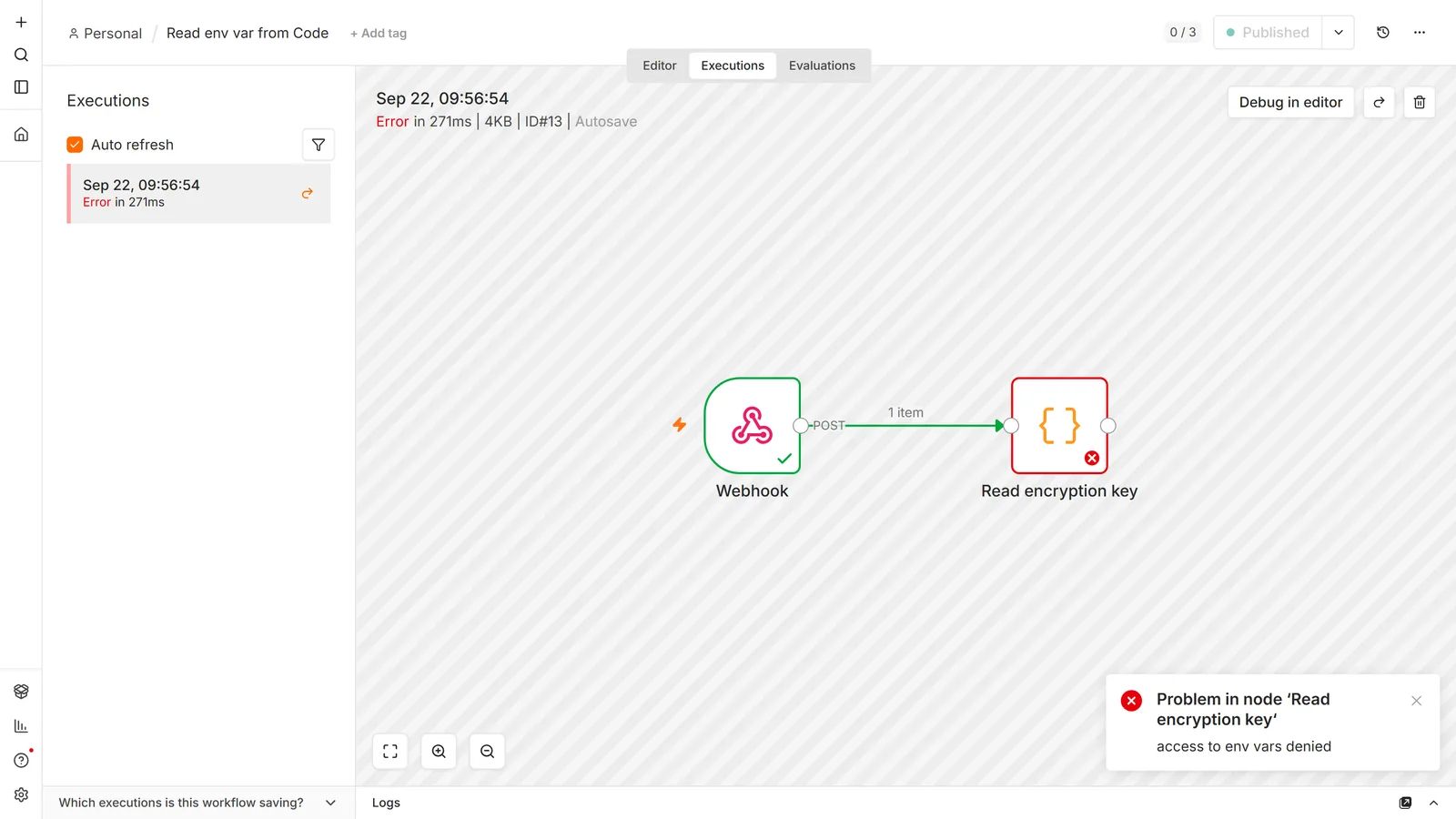
One more worth knowing about if you import workflows you didn't write: N8N_BLOCK_ENV_ACCESS_IN_NODE controls whether Code nodes and expressions can read your environment variables, including the encryption key and database password above. Since n8n 2.0 it defaults to true (blocked), and our test on 2.33.7 confirmed a Code node gets access to env vars denied. n8n's security-variables page still shows the old false default. Leave it blocked, and set it to true explicitly if an upgrade note ever tempted anyone to flip it. Importing templates safely covers why that matters and what else to check before running someone else's workflow.
Adding HTTPS with Caddy
Caddy provisions and renews a free Let's Encrypt certificate automatically, with no manual certbot steps. Create ~/n8n/Caddyfile:
n8n.yourdomain.com {
    reverse_proxy n8n:5678
}
Replace n8n.yourdomain.com with your real subdomain (it must match DOMAIN_NAME). That's the entire config. Caddy handles the TLS certificate the first time someone hits the domain.
Now start everything:
cd ~/n8n
docker compose up -d
Give it a minute (the certificate is issued on first request), then open https://n8n.yourdomain.com. Create your owner account and you're live, with a valid HTTPS padlock.
Check that all three containers are healthy:
docker compose ps
Keeping n8n running, updated, and backed up
Auto-restart: restart: unless-stopped in the Compose file means Docker brings your containers back after a crash or server reboot. Nothing else needed.
Updating n8n: pull the newest image and recreate the container. Your data lives in named volumes, so it survives the upgrade:
cd ~/n8n
docker compose pull
docker compose up -d
Backups, and do not skip this. Your workflows and credentials live in Postgres and the n8n volume. Back up the database regularly:
docker compose exec -T postgres \
  pg_dump -U n8n n8n > ~/n8n-backup-$(date +%F).sql
Copy that .sql file off the server (to your machine, S3, or a backup service) and keep your .env alongside it. Without N8N_ENCRYPTION_KEY the backup's credentials can't be decrypted. Automate it with a daily cron job for peace of mind.
The disk fills up, and this is why
This is the most common self-hosting failure, and it appears in no quick-start guide. It arrives weeks after setup, when the server that has been fine suddenly isn't.
n8n saves the full data payload of every execution by default. Not a summary, but the actual items that passed through every node. A workflow moving a few hundred KB per run, firing every five minutes, writes several gigabytes a month into your database.
Pruning is on by default, but the defaults are generous:
| Variable | Default | What it does |
|---|---|---|
EXECUTIONS_DATA_PRUNE | true | Deletes old execution data on a rolling basis |
EXECUTIONS_DATA_MAX_AGE | 336 | Hours before deletion — 14 days |
EXECUTIONS_DATA_PRUNE_MAX_COUNT | 10000 | Executions kept, whichever limit hits first |
EXECUTIONS_DATA_SAVE_ON_SUCCESS | all | Saves the full payload of every successful run |
Ten thousand retained executions is a lot of payload. The fix is to stop saving what you will never read:
EXECUTIONS_DATA_SAVE_ON_SUCCESS=none
EXECUTIONS_DATA_SAVE_ON_ERROR=all
EXECUTIONS_DATA_MAX_AGE=168
EXECUTIONS_DATA_PRUNE_MAX_COUNT=5000
Keep errors, discard successes. You debug failures, not successes, and this one change is usually the difference between a database that grows without bound and one that stabilises.
Two things catch people out even after setting this:
Pruning doesn't shrink the file. Postgres and SQLite mark space reusable rather than returning it
to the operating system, so disk usage stays flat rather than dropping until the space is reused. On
Postgres a VACUUM FULL reclaims it, but it needs free space to run, which you may no longer have.
Docker images accumulate separately. Every docker compose pull leaves the old image behind.
After several updates that is several GB of nothing to do with your data.
Find out where the space went before assuming:
df -h                               # is the disk actually full
docker system df                    # images, containers, volumes
du -sh /var/lib/docker/volumes/*    # which volume is the problem
docker image prune -a               # remove unused images
What size server you actually need
Smaller than most people fear, then abruptly larger.
1 GB RAM works for a handful of simple scheduled workflows, and people do run it on the cheapest tier available. It is tight, because n8n plus Postgres plus the OS leaves little headroom, and adding swap is close to mandatory.
2 GB is the sensible floor for anything you depend on. That comfortably runs n8n, Postgres and Caddy with room for a workflow handling a real payload.
4 GB and up once you are processing files, running AI workloads, or handling concurrent bursts.
Memory kills instances, not CPU. The characteristic failure is a workflow pulling a large API
response or binary file, n8n expanding it in memory, and the kernel's OOM killer terminating the
container. The workflow shows as failed with no useful error, because the process was killed rather
than allowed to raise one. docker compose logs n8n and dmesg | tail hold the evidence.
When that happens the fix is usually the workflow, not the server: process in batches, and avoid loading whole files into memory when a stream will do.
Queue mode is a separate question. It splits execution across worker processes and needs Redis. It is not a licensing upgrade, since it runs on the free Community edition, but it is a real jump in operational complexity, and it buys concurrency, not speed on a single workflow. Most single-instance setups never need it.
Securing your instance
A public n8n instance is a target. Lock it down:
- Firewall: allow only ports 22 (SSH), 80, and 443. On Ubuntu:
ufw allow 22 && ufw allow 80 && ufw allow 443 && ufw enable. - Never expose port 5678 directly. Let Caddy terminate TLS; keep n8n internal (as configured above).
- Use strong, unique secrets for the database password and encryption key.
- Keep the server updated:
apt update && apt upgrade -yperiodically. - Restrict SSH to key-based auth and disable root password login.
Patching is now your job
The part of self-hosting that gets the least attention and matters most. On Cloud someone else patches. Self-hosted, an unattended instance drifts out of support and stays vulnerable.
This is not theoretical. On 2026-07-22 n8n published 52 security advisories in a single day. Twenty-eight were rated high severity, including an expression-sandbox escape via arrow-function bodies enabling command execution, authenticated remote code execution through the Git node, and credential exfiltration via shared workflows. Fixes for those landed in 2.32.1, 2.31.5, and 1.123.67 for the 1.x line.
An older instance reachable from the internet is exposed to those. Update it:
cd ~/n8n
docker compose pull && docker compose up -d
docker compose logs n8n --tail=30    # confirm it came back
Habits worth adopting:
- Pin a version rather than running
:latest, so upgrades are a decision rather than something that happens on the next restart. Then update deliberately, and often. - Back up before every upgrade. Most are clean; the ones that aren't tend to involve database migrations that are awkward to reverse.
- Watch n8n's GitHub security advisories instead of waiting to hear about problems.
- Don't leave an instance running that you have stopped using. A forgotten, unpatched, publicly reachable n8n holds decrypted access to every service you ever connected to it.
If an upgrade leaves you with a 502 or Bad Gateway, the container is usually still starting or has
failed to start. Check docker compose logs before touching the proxy, which is rarely the
actual problem.
Common errors and fixes
"This site can't provide a secure connection" / no HTTPS.
DNS isn't pointing at your server yet, or port 80/443 is blocked. Confirm the A record resolves (dig n8n.yourdomain.com) and that your firewall/cloud security group allows 80 and 443. Caddy needs port 80 reachable to issue the certificate.
Webhooks return the wrong URL or don't fire.
N8N_WEBHOOK_URL and N8N_HOST must match your public HTTPS domain exactly (on a version older than 2.30, the variable is WEBHOOK_URL). If they still show localhost or an IP, you edited the values but didn't recreate the container. Run docker compose up -d again.
"Command 'code' is not allowed" or Code node fails.
On n8n 1.x, enable task runners with N8N_RUNNERS_ENABLED=true (already in the Compose file above) and restart. On 2.0 and later, task runners are enabled by default and that variable is deprecated. If the error persists there, check the container logs instead.
Credentials show as "unable to decrypt."
The N8N_ENCRYPTION_KEY changed between runs. It must stay identical to the one used when the credentials were saved. Restore the original key from your backup.
Containers keep restarting.
Check logs to see which one: docker compose logs n8n --tail=50 or docker compose logs postgres --tail=50. The most common cause is a Postgres password mismatch after editing .env without recreating the database volume.
Schedule/Cron node fires at the wrong time.
Set GENERIC_TIMEZONE to your IANA timezone (e.g. Europe/London) and restart.
Frequently asked questions
Is self-hosting n8n free?
The n8n Community Edition is free to self-host, permanently and with no execution limit. Your only cost is the server (~$5/month) and your domain. One caveat worth knowing before you build a business on it: n8n is source-available, not open source, and its licence restricts hosting n8n for paying users (see the license FAQ). Which licence you actually need breaks that down, including what it means for client work, and what's free and what isn't covers the cost side.
Do I need a domain?
For a real setup, yes. Webhooks, OAuth logins, and HTTPS all depend on a proper domain. You can test on a raw IP, but production needs a domain. Google's OAuth flow makes this concrete: the redirect URI is registered against one fixed address, so connecting a service like Google Sheets means re-registering it every time your instance moves.
SQLite or Postgres?
n8n defaults to SQLite, which is fine for testing. For anything you rely on, use Postgres (as in this guide), which handles concurrent executions far more reliably.
How much RAM do I need?
1 GB runs a light instance; 2 GB is comfortable for regular use with several active workflows. Heavy AI or data workflows benefit from more.
How do I move from n8n Cloud to self-hosted?
Export your workflows as JSON from Cloud and import them into your self-hosted instance, then re-enter credentials. Your workflows are portable JSON either way.
"Connection lost, you have a connection issue or the server is down."
This is the editor telling you its live connection to the backend dropped. It is not the same as n8n being down, and active workflows usually keep running throughout. The cause is nearly always the reverse proxy closing the long-lived push connection: Nginx needs buffering off and a long read timeout on the n8n location, and Cloudflare will idle it out on its own schedule. Setting N8N_PUSH_BACKEND=websocket resolves it for most proxy setups.
I've forgotten the owner password and never set up email.
Reset user management from the CLI: n8n user-management:reset, or docker exec -it n8n n8n user-management:reset if you're in Docker. It removes every user account and drops the instance back to its first-run setup screen, and workflows and credentials survive untouched. Configure SMTP afterwards so the next time this happens it's a reset email rather than a shell session.
My disk filled up. What is taking the space?
Almost always saved execution data. n8n stores the full payload of every successful run by default,
and keeps up to 10,000 of them for 14 days. Set EXECUTIONS_DATA_SAVE_ON_SUCCESS=none and keep
errors. Check with df -h, then docker system df, because old Docker images left behind by past
updates are the usual second culprit.
I pruned executions but the disk is still full. Why?
Databases mark deleted space as reusable rather than returning it to the operating system, so file
size stays flat until the space is reused. On Postgres a VACUUM FULL reclaims it, but it needs
free disk to run, which is awkward when you have none. Clear Docker images first to make room.
How much RAM does n8n need?
1 GB runs a few simple scheduled workflows if you add swap. 2 GB is the sensible floor for anything you depend on. Go to 4 GB or more once you handle files, AI workloads, or concurrent bursts.
My instance keeps crashing or restarting under load.
Usually memory, not CPU. A workflow pulling a large response or file gets expanded in memory and the
kernel's OOM killer terminates the container, which is why the error is unhelpful. The process was
killed, not allowed to fail. Check docker compose logs n8n and dmesg | tail. The fix is
normally to batch the workflow rather than to buy a bigger server.
Do I have to pay for queue mode?
No. Queue mode runs on the free Community edition; it needs Redis and worker processes. It buys concurrency, not speed on any single workflow, and most single-instance setups never need it.
How often should I update a self-hosted instance?
More often than feels necessary. n8n published 52 security advisories on 2026-07-22 alone, 28 of
them high severity, including an expression-sandbox escape enabling command execution, patched in
2.32.1, 2.31.5 and 1.123.67. An internet-facing instance running older code is exposed. Back up,
then docker compose pull && docker compose up -d.
I updated and now I get 502 Bad Gateway.
The container is still starting or failed to start; the proxy is reporting that, not causing it.
Run docker compose logs n8n --tail=50 before changing any proxy config. Failed database
migrations are the common cause, which is why you back up first.
Is self-hosting enough for GDPR or HIPAA compliance?
No. Running software on your own server controls where data sits; it does not by itself give you lawful basis, data-processing agreements, retention policies, audit logging, or breach procedures. Self-hosting can be part of a compliance story but is never the whole of one, and every third-party API your workflows call is still processing that data.
Can I use Nginx instead of Caddy?
Yes. Caddy is in this guide only because it obtains and renews certificates with no configuration; nothing in n8n depends on it. With Nginx you add Certbot for TLS, plus the proxy headers and generous read timeout the editor's push connection needs. Leaving that out is exactly what produces the "Connection lost" banner above.
Ready to build? The docker-compose.yml and Caddyfile above are ready to copy as they stand. Once the instance is up, our n8n workflow templates give you eight importable workflows to run on it: error handling, monitoring, and AI starters. New to containers, or want the details on volumes, image tags, and safe updates? Start with the n8n Docker setup guide. If you are still learning the basics of building workflows, the beginner tutorial covers items, expressions and debugging, and n8n vs Zapier pricing shows what self-hosting saves against a per-task tool.