n8n Google Sheets Integration: Connect, Read, and Write Rows (2026)
Set up the n8n Google Sheets integration properly: OAuth2 vs service accounts, append, read, and upsert rows, plus the gotchas that cost people hours.
By Ali Ilyas · · Updated September 17, 2026
Google Sheets is the integration most people wire up first in n8n, and the node itself is easy. Almost all of the difficulty is in the ten minutes before it: getting Google to hand n8n a working credential. That step has more places to go wrong than the entire rest of the workflow, and most guides skip past it in two sentences.
This one doesn't. We'll set up the credential properly, then build the three things you'll actually use (appending rows, reading rows with a filter, and updating a row that already exists) and finish with the gotchas that cost people an afternoon.
What's on this page
- What you'll need
- Connecting Google Sheets to n8n
- Setting up custom OAuth2, step by step
- When to use a service account instead
- The operations, and which one you want
- Build 1: append incoming data to a sheet
- Build 2: read rows and filter them
- Build 3: update a row instead of duplicating it
- Triggering a workflow when a row is added
- Quotas, and the one nobody expects
- Gotchas that cost people hours
- Frequently asked questions
What you'll need
- A running n8n instance. Either n8n Cloud or a self-hosted one. The difference matters a lot for credentials, and we'll cover it below. If you don't have one yet, the quickest local option is n8n in Docker.
- A Google account.
- A spreadsheet with a header row. n8n reads your column names from the first row, so a sheet whose first row is data rather than headers will behave strangely from the start.
Everything below was checked against n8n 2.x. Where a detail changed between major versions, it's called out.
Connecting Google Sheets to n8n
n8n supports two ways to authenticate with Google: OAuth2 and a Service Account. Both work with Google Sheets. n8n recommends OAuth2 as the default, and for most people that's the right call.
The important fork is where your n8n runs:
On n8n Cloud, Google Sheets is one of the nodes covered by managed OAuth2. You pick the credential, click through Google's consent screen, and you're done. No Google Cloud Console, no client ID. If you're on Cloud, skip to the operations.
Self-hosted, managed OAuth2 isn't available. You have to create your own OAuth client in Google Cloud Console, or use a service account. This is the step people get stuck on, so it gets its own section.
That gap is worth understanding rather than resenting. The managed credential works because n8n owns a verified OAuth app registered against its own domain. A self-hosted instance is a different application at a different address as far as Google is concerned, so Google needs you to register it.
Setting up custom OAuth2, step by step
Budget ten minutes the first time. Once the Google Cloud project exists, adding more Google services to it takes about one minute each.
1. Create a Google Cloud project
In the Google Cloud Console, open the project dropdown in the top bar and choose New project. Name it something you'll recognize, such as n8n-automation. Make sure it's selected in the top bar before continuing.
2. Enable both APIs
Go to APIs & Services → Library. Enable:
- Google Sheets API
- Google Drive API
Enabling only the Sheets API is the single most common mistake here. n8n uses the Drive API to list your spreadsheets in the Document dropdown, so without it the node authenticates fine and then shows you an empty list, which looks like a permissions bug and isn't one. Google Docs and Slides have the same requirement.
3. Configure the OAuth consent screen
Go to APIs & Services → OAuth consent screen and select Get started.
- Enter an app name and user support email.
- Choose your audience: Internal limits access to accounts in your Google Workspace organization. External allows any Google account, and is what you'll pick if you're on a personal Gmail account.
- Add contact email addresses and accept the User Data Policy.
- Under Branding → Authorized domains, add
n8n.cloudif you're on Cloud, or your own domain if you're self-hosting.
Read this part before you continue. If you choose External, your app starts in Testing mode. Two consequences follow:
- Only Google accounts you explicitly add as test users can complete the OAuth flow. Add yours under Audience.
- Consent and tokens expire after seven days. Your workflow runs perfectly all week and then fails on day eight with an auth error, for no reason you changed.
That second one is the highest-frustration item on this page, because the failure arrives long after the setup that caused it. If this is a workflow you intend to keep, publish the app rather than leaving it in Testing.
4. Create the OAuth client
Go to APIs & Services → Credentials → + Create credentials → OAuth client ID, and choose Web application as the application type.
Now switch to n8n. Create a new Google Sheets OAuth2 API credential, and copy the OAuth Redirect URL it displays. It follows this shape:
https://your-n8n-domain.com/rest/oauth2-credential/callback
Paste that into Authorized redirect URIs in Google Cloud Console and select Create. Google shows you the Client ID and Client Secret in a modal. Copy both now, because the secret isn't fully visible again later.
If you're developing locally, this works without SSL or port forwarding:
http://localhost:5678/rest/oauth2-credential/callback
Copy the URL exactly as n8n gives it to you, including the protocol and port number. A redirect_uri_mismatch error almost always means one of those three differs: http against https, a missing :5678, or a trailing slash. Google matches this string literally.
One consequence for self-hosters: a public n8n instance needs a stable HTTPS address before this credential is worth creating, because the redirect URI is registered against a fixed URL. If your instance is still on a bare IP or a tunnel URL that changes, sort out a real domain and certificate first, otherwise you'll be re-registering the redirect URI every time the address moves.
5. Finish in n8n
Paste the Client ID and Client Secret into the n8n credential, click Sign in with Google, complete the consent flow, and save. If your app is External and in Testing, you'll see an "unverified app" warning. That is expected, and you can proceed through it for an app you created yourself.
The scopes n8n requests for Sheets are:
https://www.googleapis.com/auth/spreadsheets
https://www.googleapis.com/auth/drive.file
drive.file is deliberately narrow: it grants access only to files opened or created through the app, not your whole Drive.
When to use a service account instead
A service account is a robot Google account with its own email address. Instead of a consent flow, you share the spreadsheet with that address the same way you'd share it with a colleague.
Use one when:
- The workflow belongs to a team or a server rather than to you personally. Service account access doesn't disappear when someone leaves.
- You want to avoid the seven-day token expiry entirely.
- The instance runs unattended and nobody will be around to re-authorize it.
Stay with OAuth2 when the sheets are your own and you want the fastest setup. One caveat worth knowing: Google supports service accounts with Gmail only through domain-wide delegation, which Google discourages and which behaves inconsistently, so n8n recommends OAuth2 for Gmail specifically. For Sheets, both are fully supported.
The thing people forget with service accounts: share the sheet with the service account's email address. Nothing works until you do, and the resulting permission error doesn't say so.
The operations, and which one you want
The Google Sheets node has two resources. Document operates on the spreadsheet file (Create, Delete). Sheet Within Document operates on a tab inside it, which is where nearly all real work happens:
| Operation | Use it when |
|---|---|
| Append Row | Adding new records. Never touches existing rows. |
| Append or Update Row | You don't know whether the record exists yet — the upsert. |
| Update Row | The row definitely exists and you're changing it. |
| Get Row(s) | Reading data out, optionally filtered. |
| Clear | Wiping a sheet's contents before a fresh load. |
| Delete Rows or Columns | Removing rows or columns by position. |
| Create / Delete | Adding or removing a tab. |
If you're unsure between the first three: use Append Row for logs and event streams where every entry is new, and Append or Update Row for anything keyed on an identifier (a customer email, an order ID) where running the workflow twice shouldn't produce two rows.
Every operation shares the same two selectors. Document and Sheet can each be picked From list, By URL, or By ID (Sheet also offers By Name). Use From list while building, since it confirms your credential can actually see the file. Switch to By ID or an expression when the sheet is chosen dynamically at runtime.
Build 1: append incoming data to a sheet
The most common workflow in n8n: something happens, write a row about it.
- Add a trigger. A Webhook node works for form submissions; a Schedule Trigger works for periodic jobs. If the form is on your own site, the browser will need CORS allowed on that webhook before the call goes through. See the webhook tutorial.
- Add a Google Sheets node. Set Resource to Sheet Within Document and Operation to Append Row.
- Select your Document and Sheet.
- Set Mapping Column Mode.
That last setting is the one to understand. It has two options:
- Map Automatically: n8n matches incoming field names to column headers. Clean and fast when your data's keys already match your headers exactly.
- Map Each Column Manually: n8n lists your sheet's columns and you drag or type an expression into each. More clicks, far more predictable.
Start with Map Each Column Manually while you're learning. Automatic mapping doesn't fail loudly when a name is off. We sent a field called Name to a sheet whose header is name: the node reported success, added a brand-new Name column on the right, and left the real name column blank. Matching is case-sensitive, and by default an unmatched field becomes a new column rather than an error. (On a completely empty tab, the first automatic append writes the header row for you from the field names.)
Three options are worth setting under Options:
Cell Format is where Let Google Sheets format (the default) means Google interprets your values the way it would if you typed them. In our test the text 001 was stored as the number 1, and the phone number +44 20 7946 became a formula and showed #ERROR! (Formula parse error), with the node still reporting success. Let n8n format wrote both exactly as sent. If you're writing product codes, order IDs, phone numbers, or anything with leading zeros, choose Let n8n format.
Data Location on Sheet sets which row holds your headers and which row your data starts on. Change these if your sheet has a title block above the table.
Handling extra fields in input decides what happens when your data contains a key with no matching column: Insert in New Column(s) (the default), Ignore Them, or Error. It only appears with Map Automatically. For a workflow you want to trust, Error is the right choice, because it surfaces schema drift instead of hiding it. The run then stops with Unexpected fields in node input, and the details name the offending field.
Build 2: read rows and filter them
Set Operation to Get Row(s). With no filters, it returns every row as an n8n item.
Add a Filter to narrow it: pick a Column, give it a Value, and only matching rows come back. How many come back depends on the node's version, which is the surprise for people building "look up this customer" workflows:
- A node you add today returns every matching row. To get just one, turn on Return only First Matching Row under Options.
- An older node, such as one inside a workflow imported from a template or an older instance, returns only the first match unless When Filter Has Multiple Matches is set to Return All Matches.
We ran the same filter against two rows sharing a value: the current node returned both, the older version returned one. If a copied workflow "misses" records, check this before anything else.
Also under Options, Output Formatting controls what you actually receive:
- Values (unformatted), the default: the raw underlying value. A currency cell comes through as
1234.5, not$1,234.50. - Values (formatted): the display string, as shown in the sheet.
- Formulas: the formula text rather than its result.
Choose unformatted when the number feeds a calculation, and formatted when it feeds a message someone will read. Getting this backwards produces the classic bug where a total is off because $1,234.50 was parsed as a string.
Build 3: update a row instead of duplicating it
Append or Update Row is the operation that makes a workflow safe to re-run.
Pick the column under Column to match on. It's there in both mapping modes. That column is the identity key. n8n looks for a row whose value in that column matches your incoming data. If it finds one, it updates that row; if not, it appends a new one.
Pick something genuinely unique. Email addresses and order IDs work. Names don't.
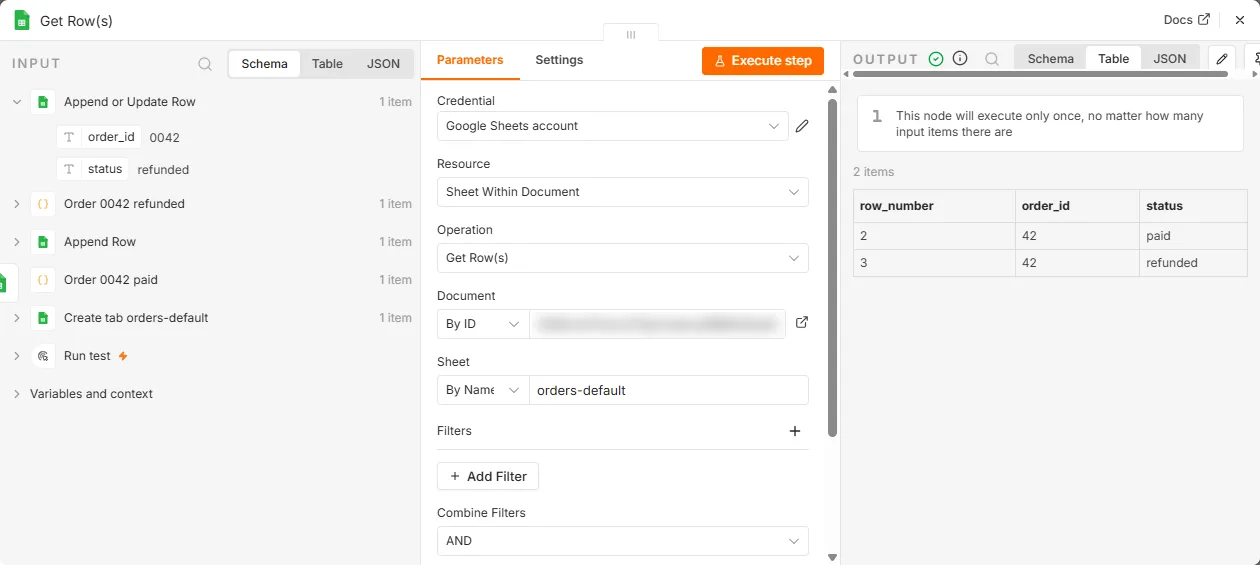
Match on text that Google hasn't reformatted. The match compares what's stored in the sheet, not what you originally sent. In our test an order ID 0042 was first written with the default cell format, so the sheet stored 42. The next run sent 0042 to Append or Update, found no match, and appended a second row for the same order. Nothing errored. With Cell Format set to Let n8n format on both nodes, the same run updated the existing row. Any ID with leading zeros needs that setting from the very first write.
Three limits to plan around:
You can only match on one column. There's no composite key. If your identity is genuinely two fields, build a combined key column in the sheet, email|date for instance, and match on that.
The "Minimise API Calls" option is a performance trade. Enabling it uses Google's append endpoint, which means fewer API calls and better throughput on large runs. The documented cost: if your existing sheet data has gaps or breaks between rows and columns, n8n can place new data in the wrong location. Leave it off on a messy sheet; turn it on for a clean, densely-populated one where you're writing a lot.
The match is a read and then a write, not one atomic step. n8n reads the sheet to find the matching row, then writes, and the Sheets API has no conditional write that would collapse those into a single call. Two executions carrying the same key can both look, both find nothing, and both append: exactly the duplicate the operation exists to prevent. It stays invisible at low volume and appears the first time a webhook fires twice or a batch runs in parallel. The cheap mitigation is to stop the runs overlapping. On self-hosted n8n, N8N_CONCURRENCY_PRODUCTION_LIMIT=1 caps concurrent production executions instance-wide (it is not a per-workflow setting; the default -1 disables the cap in regular mode). The durable fix is to keep the identity key in a store that can refuse a second write, such as a database column with a unique constraint, because a spreadsheet cannot. Thanks to Hayrullah Kar for raising this.
For a sense of how widespread the assumption is: across 2,030 published workflow files, 69 of the 71 Append-or-Update nodes key on a matching column, using it as an identity key exactly as described above, and 43 of those 53 workflows have no retry, no error branch and no Error Trigger. Thirty-one have an automatic trigger and no error handling at all, which is the combination this section is about.
Triggering a workflow when a row is added
The Google Sheets Trigger is a separate node from the one above, and it starts a workflow when the sheet changes. Three events are available:
- Row added
- Row updated
- Row added or updated
This is a polling trigger, not a push. Google doesn't notify n8n; n8n checks the sheet on the interval you configure. Two things follow. Detection is not instant. It is bounded by your polling interval. And a row added and then deleted between two polls is never seen at all.
For anything needing true real-time behavior, have the upstream system call an n8n Webhook node directly rather than routing it through a spreadsheet. That needs a publicly reachable instance, which is the self-hosting setup. The Telegram Trigger is a good example of the push model for comparison: updates arrive the instant they happen, at the cost of requiring a public HTTPS address.
Two documented issues are worth knowing before they bite:
Dates arrive as numbers like 45678.5. That's Google's serial format. The whole number is days since December 30, 1899, and the decimal is the fraction of a 24-hour day. Fix it in the node: Add option → DateTime Render → Formatted String. This applies when Trigger On is set to Row Added. The resulting format follows your spreadsheet's locale, which you can change under File → Settings → Locale.
The execution appears stuck waiting for a trigger event. On self-hosted instances this is usually a reverse proxy without websocket support. Enable websocket proxying in Nginx, Caddy, Apache, or Traefik, whichever sits in front of n8n. The self-hosting guide covers a configuration that has this set correctly.
Quotas, and the one nobody expects
Google's Sheets API is rate limited, and the limits are lower than most people assume. Published figures:
| Limit | Value |
|---|---|
| Read requests per minute per project | 300 |
| Read requests per minute per user per project | 60 |
| Write requests per minute per project | 300 |
| Write requests per minute per user per project | 60 |
Exceed them and Google returns 429: Too many requests. Quotas refill every minute, and there is no daily cap to worry about, so this is purely a burst problem.
Here is the part that catches people. Those quotas are per Google Cloud project, not per spreadsheet and not per person. When you sign in with n8n's built-in Google credential rather than your own OAuth client, you are using n8n's Google Cloud project, and so is everybody else doing the same thing. You are sharing a 300-per-minute ceiling with strangers, which is why a workflow can start throwing 429s on a quiet Tuesday having changed nothing.
Setting up your own OAuth2 client gives you your own project and your own quota. That is the real argument for the custom credential setup above, and it is a stronger one than the seven-day testing expiry most guides lead with. If you are on n8n Cloud using the built-in credential and seeing unexplained rate limits, this is almost certainly why.
Hitting the limit with your own project is easy too, because every n8n node runs once per input item. A node updating 200 rows makes 200 API calls as fast as it can. What helps, in order:
- Read once, not repeatedly. Fetch the sheet into memory and match in n8n rather than issuing a lookup per row.
- Write in bulk. Appending many rows in one operation is one request; appending in a loop is one request per row.
- Pace deliberately with Loop Over Items plus a Wait node when volume is genuinely high.
- Enable Retry On Fail with a delay, so an occasional 429 recovers instead of failing the run.
At real volume, a spreadsheet is the wrong database. If a workflow reads and writes thousands of rows on a schedule, moving to Postgres or Notion removes the ceiling rather than working around it.
Gotchas that cost people hours
The Document dropdown is empty even though the credential connected. The Google Drive API isn't enabled on your Google Cloud project. Sheets API alone authenticates but can't list files.
redirect_uri_mismatch when signing in.
The redirect URI in Google Cloud Console doesn't match n8n's byte for byte. Check protocol, port, and trailing slash.
It worked for a week, then stopped. Your OAuth app is External and still in Testing mode, where consent and tokens expire after seven days. Publish the app, or move to a service account.
"Column names were updated after the node's setup." You changed headers in the sheet after configuring the node. n8n cached the old ones. Re-select the Mapping Column Mode option to refresh the column list, then fix any parameters that referenced the old names.
An array or object lands in one cell as raw JSON.
Google Sheets cells hold single values. On n8n 2.33.7 an array field was written as the text ["a","b"] and an object as {"x":1}, with no error. Use a Split Out node to turn each array element into its own item and its own row, or a Code node to join the values into readable text if one cell is what you want.
One row goes in, but you expected many. n8n runs the node once per input item. If your data arrived as a single item containing an array of records, you get one row. Split it first with the same Split Out node.
Leading zeros vanish, or a phone number shows #ERROR!.
Google is interpreting your values: 001 becomes 1, and a value starting with + is parsed as a formula. Set Cell Format to Let n8n format. If the value is also your Append or Update key, fix it before the first write, or the upsert stops matching and starts duplicating rows.
A permission error with a service account. You didn't share the spreadsheet with the service account's email address. Open the sheet, hit Share, paste that address, give it Editor.
Frequently asked questions
Do I need a paid Google Workspace account?
No. A free personal Google account works. Workspace only matters if you want the Internal audience option, which avoids the Testing-mode expiry.
Is there a limit on how much data I can write?
Google's Sheets API enforces per-minute quotas per project and per user, so very high-frequency writes will hit rate limits. Batch your writes rather than calling the node once per record, and be aware that a spreadsheet is a poor substitute for a database above a few tens of thousands of rows.
Can n8n read a sheet shared with me by someone else?
Yes, provided your Google account has access. With OAuth2 the drive.file scope covers files you open through the app. With a service account, the owner has to share the sheet with the service account address.
Why does my number come through as a string?
Output Formatting is set to Values formatted. Switch to Values unformatted for the raw value.
Can I use one credential for Sheets, Drive, and Gmail?
You can reuse one Google Cloud project for all of them, but n8n uses a separate credential type per service. Enable each API in the same project and create each credential against the same OAuth client.
Does this work the same on n8n Cloud and self-hosted?
The node is identical. Only the credential setup differs. Cloud gives you managed OAuth2, self-hosted requires the custom client above.
"The service is receiving too many requests from you."
Google's quota, not n8n's. The Sheets API allows roughly 300 requests per minute per project and 60 per minute per user, counted separately for reads and writes. A workflow that writes one row per item spends one request per item, so a 200-row run blows through it. Collect the rows and append them in a single call, add a Wait node between batches, or enable the node's retry with a delay long enough for the window to reset.
My Sheets trigger returned every existing row the first time it ran.
Expected on the first execution, because the trigger has no previous state to compare against, so it establishes a baseline and, depending on the event you selected, reports what it finds while doing it. Discard that run; subsequent ones report only changes. If it keeps returning everything, something else is rewriting the sheet wholesale rather than appending to it, and every row genuinely is new each time.
How do I update a row when it exists and create it when it doesn't?
The Append or Update Row operation, with a column chosen to match on. It finds the first row whose value in that column matches and updates it, or appends a new row when nothing matches. The matching column has to be genuinely unique: with duplicates it updates the first hit and silently leaves the rest, which reads as data loss when it's actually a key problem.
Why am I getting 429 or quota errors from Google Sheets?
You are exceeding 300 requests per minute per project, or 60 per minute per user. It is usually a node running once per item against many rows. Batch the writes, read once instead of per-row, and add Retry On Fail with a delay.
Do n8n Cloud users share a Google Sheets quota?
If you use n8n's built-in Google credential, yes. Quotas are per Google Cloud project, and that credential uses n8n's project. Other people's usage can consume the ceiling you are hitting. Setting up your own OAuth2 client moves you to your own project and your own quota.
How do I see how much quota I have used?
Only in your own Google Cloud project, under APIs & Services → Quotas. With the built-in n8n credential you have no visibility at all, because the project is not yours, which is another reason to use your own OAuth client for anything you depend on.
My Google Sheets OAuth stopped working after about a week.
Your OAuth consent screen is External and still in Testing, where refresh tokens expire in seven days. Publish the app, or switch to a service account. This is the single most common Sheets authentication complaint and it is not an n8n bug.
Should I use a service account or OAuth2?
Service account for unattended server-to-server work you own: no consent screen, no expiring tokens, and remember to share the sheet with the service account's email or it sees nothing. OAuth2 when acting on behalf of a real user's own Drive.
Is Google Sheets a reasonable database for a workflow?
Up to a few thousand rows and modest write rates, yes, and its editability is a genuine feature. Past that the per-minute quota becomes the limiting factor and every operation gets slower. Move to Postgres or a real database when you are fighting the API rather than using it.
Official references worth bookmarking: n8n's Google Sheets node documentation and Google's Sheets API authorization scopes.
Want this as a working workflow? Importable workflows built on Sheets (validated webhook capture, a lookup-before-write guard, and a scheduled heartbeat monitor) are among our n8n workflow templates. Running n8n yourself and still setting things up? Start with n8n in Docker, then put it on a real domain with HTTPS so your OAuth redirect URI stops moving. Syncing a spreadsheet with a Notion database is the natural next build, and what is n8n explains the item flow that both rely on.