n8n Slack Notifications: Alerts, Threads, and Approvals (2026)
Build Slack notification workflows in n8n: pick the right auth, avoid the token rotation trap, format readable alerts, and approve actions from inside Slack.
By Ali Ilyas · · Updated September 18, 2026
Sending a Slack message from n8n is a two-field node. The setup around it is where the decisions live, and two of them are hard to undo.
The first is your authentication method: n8n recommends OAuth2 for the Slack node, but OAuth2 does not work with the Slack Trigger. Pick it, then decide six weeks later that you want your workflow to react to Slack messages, and you're rebuilding your credential.
The second is worse. Slack offers token rotation, which sounds like straightforward good security hygiene. Enable it and your tokens expire every 12 hours, and you cannot turn it back off. The only remedy is creating a new Slack app from scratch.
Both are decided in the first five minutes, so this guide covers them before anything else. Then: sending notifications people can actually read, and the operation that turns alerts into approvals.
What's on this page
- What you'll need
- Choose your authentication method first
- Create the Slack app
- Do not enable token rotation
- Send your first notification
- Writing alerts people actually read
- Approvals: replying inside Slack
- Reacting to Slack events
- The one-request-URL problem
- Common errors and fixes
- Frequently asked questions
What you'll need
- A Slack workspace where you can install apps. This usually needs admin rights. Installing to a workspace is an admin action, and it's the step that stalls people inside larger companies.
- A running n8n instance. Sending works from anywhere, including
localhost. The Slack Trigger needs a public HTTPS URL, because Slack delivers events to you, the same constraint as the Telegram Trigger. If you're local, start with n8n in Docker; for the trigger you'll want a real domain with HTTPS.
Choose your authentication method first
n8n supports two ways to authenticate with Slack, and they are not interchangeable:
| API Access Token | OAuth2 | |
|---|---|---|
| Slack node | Works | Works (n8n's recommendation) |
| Slack Trigger | Required | Not supported |
| Setup | Paste a bot token | Client ID + secret + callback URL |
Read the middle row again, because it's the one that costs time. The Slack Trigger only accepts an API Access Token. If you set up OAuth2 because it's labelled as recommended, and later add a trigger, you'll be creating a second credential and reconnecting nodes.
My recommendation: use the API Access Token unless you have a specific reason not to. It's less setup, it works with every node including the trigger, and the "recommended" label on OAuth2 reflects general credential hygiene rather than anything about capability here.
That's the opposite of the advice for Google Sheets, where OAuth2 genuinely is the easier path. The right default is per-service, not universal.
Create the Slack app
Both methods start the same way, and n8n gives you a manifest to skip most of the clicking.
- Go to Slack's app directory and choose Create New App → From a manifest.
- Select your workspace.
- Replace the default manifest JSON with the one from n8n's Slack credentials documentation, which pre-fills every scope the node needs.
- Review and create.
Then install it:
- Open OAuth & Permissions.
- Select Install to Workspace and authorize.
- Copy the Bot User OAuth Token.
Paste that token into n8n's Slack credential as the Access Token. Done.
The manifest sets scopes including chat:write (send messages), channels:read and channels:history (see public channels), groups:*, im:* and mpim:* (private channels and DMs), files:read / files:write, reactions:*, and users:read. If you build the app by hand instead of from the manifest, missing scopes are the leading cause of the permission errors at the end of this guide.
Using OAuth2 instead? Copy the OAuth Callback URL from n8n, substitute it into the manifest where it says <your-oauth-callback-url>, install to the workspace, then paste the Client ID and Client Secret into n8n.
Do not enable token rotation
Slack's app settings offer token rotation. Leave it off.
With rotation enabled, your tokens expire every 12 hours. An n8n credential holding a static token stops working overnight, and the workflow fails at whatever hour the token lapsed, typically the morning after you set everything up and confirmed it worked.
The part that makes this worth a section rather than a footnote: once enabled, token rotation cannot be disabled. There is no toggle back. Recovering means creating a new Slack app, reinstalling it, and re-entering the new token everywhere you used the old one.
It's an easy switch to flip while exploring the settings page, and it's the only genuinely irreversible mistake available in this setup.
Send your first notification
Add a Slack node, set Resource to Message and Operation to Send.
Choose where it goes (a channel, or a user for a direct message) and write your text. Channels can be picked from a list, or specified by ID or URL when the destination is dynamic.
Then invite the bot to the channel. This is the step everyone skips. Your app is installed in the workspace, but that doesn't put it in any particular channel. Open the target channel and run:
/invite @your-bot-name
Without this you get not_in_channel, which reads like a scope problem and isn't one. Private channels always require the invite. Note also that a bot can post to a channel it was invited to even if a human would need to be a member. Inviting the bot is about the bot, not about you.
For a first test, use a channel you own rather than #general. Slack workspaces often restrict posting there, and a permission error on your first run sends you debugging the wrong thing.
Writing alerts people actually read
A notification workflow that works is easy. One people don't mute takes a little more.
Send fewer, richer messages. The instinct is to fire a node per event. In a busy channel that's noise, and it also runs into Slack's rate limiting. chat.postMessage is throttled roughly to one message per second per channel. Aggregate with a Loop Over Items or Code node and post one summary.
Thread follow-ups instead of stacking messages. Post the first message, then send each update with Options → Reply to a Message, putting the first message's timestamp in Message Timestamp to Reply To. The Send node returns it as message_timestamp, so the expression is {{ $('Send first message').item.json.message_timestamp }}. We tested this on n8n 2.33.7 and the reply landed in the thread. A multi-stage workflow (started, progressing, finished) then stays one collapsed conversation rather than three separate interruptions.
Put the important part in the first line. Slack truncates in previews and notifications, so Deploy failed: payments-api is read on a lock screen; Workflow execution completed with status is not.
Use blocks for structure, but set the fallback text yourself. Block Kit gives you sections, dividers, and buttons. With Message Type set to Blocks, the node shows an optional Notification Text field. It's the plain text Slack uses where blocks can't render, such as notifications and screen readers. When we left it empty, Slack built the text from the block content, which is readable for one short section but not for anything with buttons or layout. Write a one-line summary there instead.
Turn off the workflow link if the audience isn't you. Include Link to Workflow is on by default. It appends Automated with this n8n workflow, linked to the workflow in your editor, to every message. In our test that link pointed at http://localhost:5678/..., which is useless to anyone else in the channel and tells them where your instance lives. Switch it off under Options on any notification a team or client will read.
Reserve @channel. Automated mentions that wake everyone are the fastest route to a muted channel, which defeats the point of the alert.
Approvals: replying inside Slack
The most useful operation on this node isn't Send. It is Send and Wait for Response, and most Slack automation guides never mention it.
It posts a message and then pauses the workflow until someone responds. The workflow resumes the moment they do. That turns Slack from a notification target into a control surface: expense over a threshold, content ready to publish, a deploy waiting on sign-off, all approved from a phone, without opening n8n.
Set Response Type to:
- Approval: Approve and Decline buttons (or just Approve).
- Free Text: collects typed input on a page.
- Custom Form: a structured form on a page.
By default, Approval buttons are links, not Slack buttons. We posted an Approval message with the default settings and read it back from the channel. Both buttons were URL buttons pointing at http://localhost:5678/webhook-waiting/..., n8n's own resume address. Tapping one opens a browser, and that has two consequences:
- The link has to be reachable from the approver's device. On a laptop-only or office-network instance, an approver on their phone gets a page that won't load. The link is built from your instance's public URL, so a self-hosted instance needs a real domain with HTTPS and its public webhook URL set before this is usable. That's
N8N_WEBHOOK_URLon current 2.x; the olderWEBHOOK_URL(the only name before 2.30) still works but logs a deprecation warning at startup on 2.33.7. - Whoever has the link can decide. Slack isn't checking who clicked. Someone the message was forwarded to could approve it too.
Truly in-Slack buttons are opt-in, under Advanced Interactivity, and they need more setup than the node suggests:
- Capture Who Responded switches the links to real interactive Slack buttons and records the responder's ID, name, username, email, channel, and message ID. It only works if the Slack app has Interactivity turned on with its Request URL pointed at your n8n instance, the credential has a Signature Secret, and the app has the
users:readandusers:read.emailscopes. That's another public request URL, so the same localhost restriction applies. - Restrict Who Can Approve: limits which users count. It only appears once Capture Who Responded is on, because a plain link can't tell who clicked.
- Unauthorized Reply: the private message someone outside that list sees when they click.
- After Decision: how the original message changes once resolved. The default is Show Outcome and Remove Buttons, so the channel doesn't keep a live-looking button on a settled request.
For anything that approves spending or publishing, turn on Capture Who Responded and restrict the approvers. Without them, the approval is only as private as the link.
This same operation is what makes human-in-the-loop AI agents practical: the agent proposes, a person approves in Slack, the workflow proceeds.
Reacting to Slack events
The Slack Trigger starts a workflow from Slack activity. Available events:
Any Event, App Home Opened, Bot / App Mention, File Made Public, File Shared, New Message Posted to Channel, New Public Channel Created, New User, and Reaction Added.
Key settings:
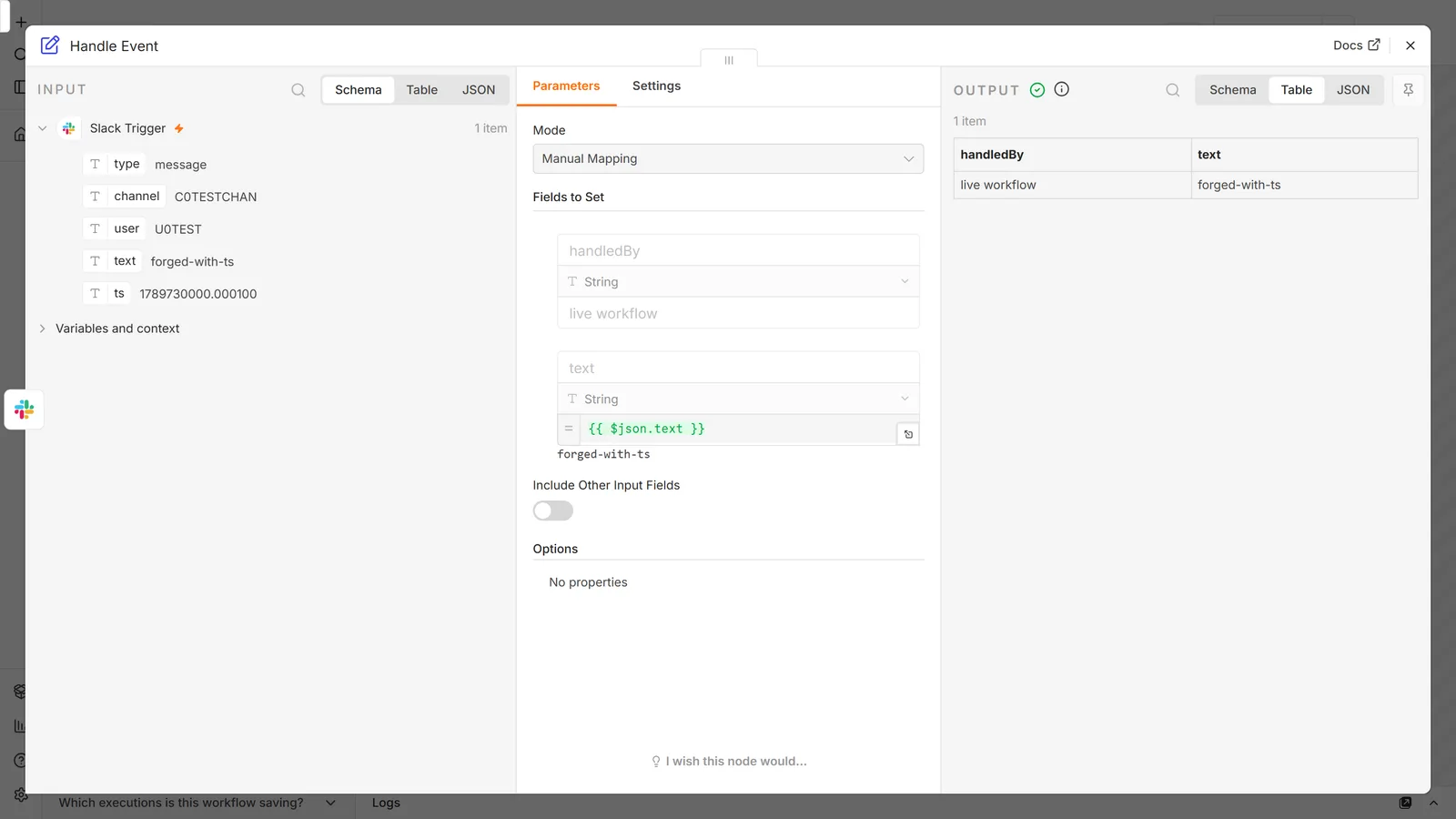
Watch Whole Workspace is off by default, which is the right default. On, you receive events from every channel; in an active workspace that's a lot of executions for very little signal. Leave it off and set Channel to Watch.
Resolve IDs is off by default. Slack sends raw IDs like U01ABCDEF, not names. Turn this on and n8n resolves them, saving you lookup nodes.
Emoji Names to Filter restricts Reaction Added to specific emoji. Note the format: comma-separated and not colon-separated. white_check_mark, eyes works; :white_check_mark: doesn't.
Usernames or IDs to ignore is worth setting to your own bot, so its messages don't retrigger the workflow.
The trigger needs Event Subscriptions enabled in the Slack app, with n8n's webhook URL as the Request URL. Copy the Signing Secret from Basic Information into the credential's Signature Secret field so incoming requests are verified as genuinely from Slack. A public webhook without signature verification will accept anything that finds the URL, and we checked how little "anything" needs on n8n 2.33.7. With no Signature Secret, a hand-made curl request with a made-up message and nothing but a current x-slack-request-timestamp header was accepted and ran the workflow. With the secret set, the same unsigned request got 401 Unauthorized, a correctly signed one ran, and a correctly signed one with an hour-old timestamp was refused too, so a captured request can't simply be replayed later.
The one-request-URL problem
Slack allows one request URL per app. n8n uses a test URL while you're executing from the editor and a production URL once the workflow is published, so one Slack app can only feed one of them.
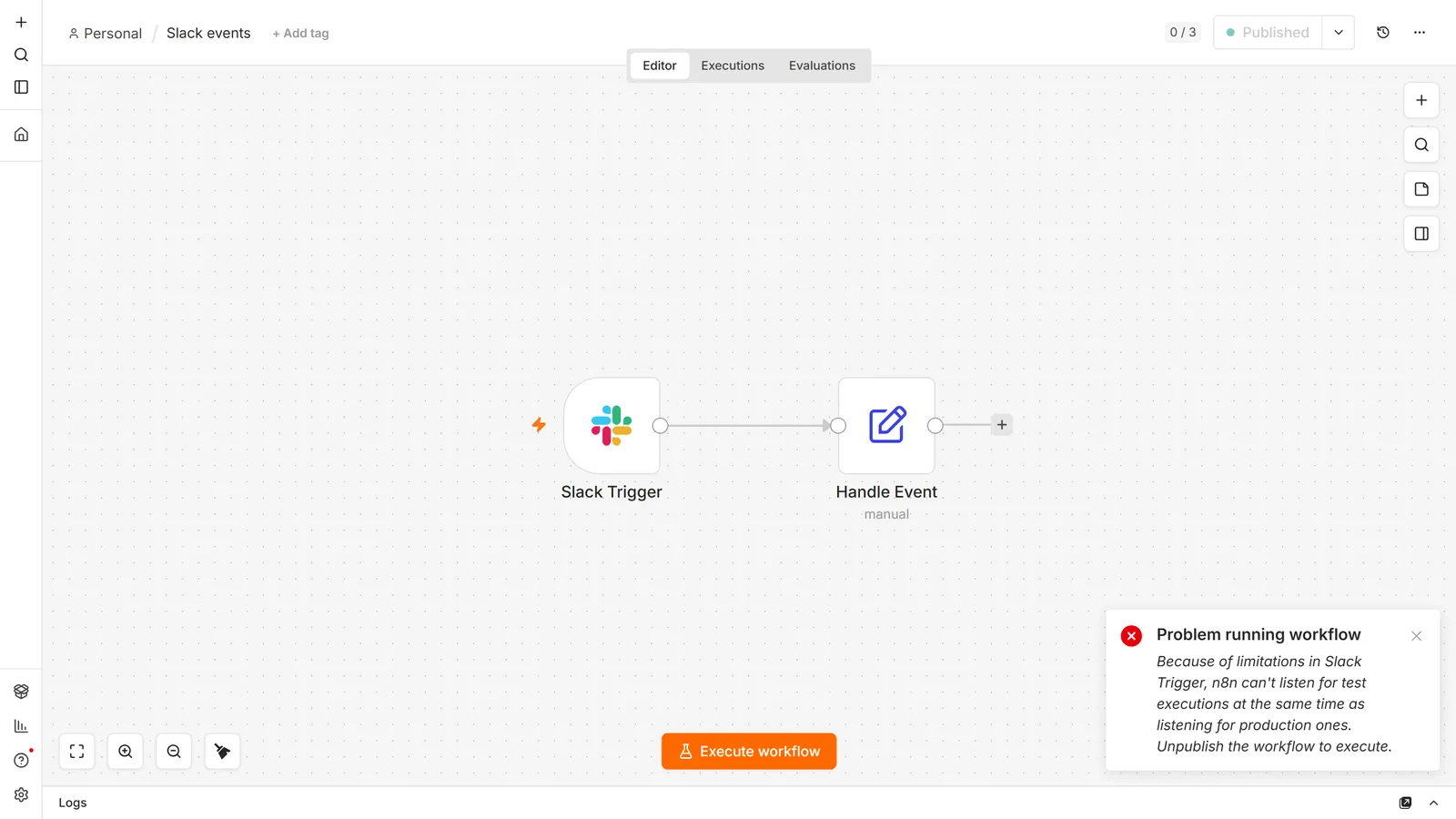
n8n 2.33.7 enforces its half of this. Click Execute workflow on a published Slack Trigger workflow and it refuses:
Because of limitations in Slack Trigger, n8n can't listen for test executions at the same time as listening for production ones. Unpublish the workflow to execute.
The rest is on the Slack side, and it's manual. n8n never tells Slack which URL to call: the trigger's register and unregister steps do nothing, and you paste the Request URL into the Slack app yourself. We confirmed what that means in a test. With a live workflow published and an unpublished copy of it listening for a test event, requests to the live URL kept running the live workflow, before, during and after the copy's test. That's unlike Telegram, where a test run on a copy takes the live bot down. Slack's version of the problem comes from you repointing the Request URL at the test URL to debug. Everything live goes silent until you point it back, with no error in n8n, because n8n simply receives nothing.
The fix is a second Slack app for development, with its own credential and its own Request URL pointed at your test workflow. Swapping one app's Request URL back and forth works, but your live automation is down whenever you're building.
Common errors and fixes
not_in_channel
The bot isn't in that channel. Run /invite @your-bot-name there. Installing the app to the workspace is not the same as joining a channel.
missing_scope
The token lacks a permission. The response names the scope it wanted. Add it under OAuth & Permissions, then reinstall the app, because scope changes only take effect on reinstall, which is the half people miss.
channel_not_found
n8n shows it as Slack error response: "channel_not_found". Either the ID is wrong, or it's a private channel the bot hasn't been invited to. Private channels are invisible to an app that isn't a member, so "not found" here often means "not allowed".
invalid_auth or token_revoked after it worked fine
Token rotation is enabled and the token expired. Check your app settings. If rotation is on, you need a new app.
ratelimited
Too many calls. chat.postMessage allows roughly one per second per channel. Batch your messages instead of one node run per item.
invalid_blocks
Malformed Block Kit JSON. Paste it into Slack's Block Kit Builder to find the problem. The API error rarely points at the right element.
The trigger fires but every field is an ID. Turn on Resolve IDs in the trigger options.
The trigger works in the editor but not when active, or the reverse. The single request URL. See above.
Frequently asked questions
Do I need a paid Slack plan?
No. Apps and bots work on the free plan. Free workspaces limit message history, which affects reading old messages, not sending new ones.
Can I send to a direct message instead of a channel?
Yes, set the destination to a user. The DM comes from your bot, and the user must be able to receive messages from apps.
Why does my notification preview read oddly when the message looks fine?
You sent blocks and left Notification Text empty. Notifications show plain text, and without that field Slack builds it from the block content, buttons and all. Put a one-line summary in Notification Text.
Can several workflows use one Slack app?
For sending, yes, unlimited. For triggers, no: one request URL per app. Route events into a single trigger and branch, or use separate apps.
How do I log Slack messages to a spreadsheet?
Chain a Google Sheets node onto the Slack Trigger and append a row per message. The append and upsert patterns are in the Google Sheets guide.
Slack or Telegram for alerts?
Slack if the alerts are for a team that already lives there, and especially if you want approvals, because the in-Slack buttons have no clean Telegram equivalent. Telegram if it's personal alerts or an external audience, since it needs no workspace and no admin to install anything.
Can I post as myself instead of as the bot?
Yes, but it takes a different token. A bot token (xoxb-) always posts as the app. Posting under your own name and avatar needs a user token (xoxp-) carrying chat:write under User Token Scopes (a separate list from Bot Token Scopes on the OAuth & Permissions page) attached to the node as an access-token credential. Reinstall the app after adding the scope. Messages then count against your rate limits rather than the bot's, and they can't be posted to channels you aren't in.
The channel dropdown is empty.
Missing read scopes, nearly always, rather than a broken credential. Listing channels needs channels:read for public ones and groups:read for private ones, and the bot only ever sees private channels it's been invited to. Add the scopes, reinstall, reopen the node. A workspace with thousands of channels can also time the list out. Switch the field to By ID and paste the ID from the channel's View channel details.
Slack won't accept my Events API request URL.
Slack sends a one-off challenge payload and expects it echoed back within three seconds. Three things break that: the workflow isn't published, so only the test URL exists and it listens only while you have the editor open; the URL isn't publicly reachable; or n8n is behind a proxy and doesn't know its own public address, so N8N_WEBHOOK_URL (formerly WEBHOOK_URL) needs setting. Publish first, then paste the production URL.
How do I upload a file or an image?
Use the Slack node's File → Upload operation rather than putting an attachment on a message. It reads binary data from an earlier node, so the binary property name in the node has to match what that node produced, data unless you changed it. Putting a URL in message text posts a link, and Slack only renders a preview if that link is publicly reachable, which rules out anything behind your own auth.
How do I reply in a thread rather than starting a new message?
Add Options → Reply to a Message and put the parent's timestamp in Message Timestamp to Reply To. The node that posted the parent returns it as message_timestamp, so chain from that node instead of looking the message up again. A ts copied out of a permalink won't work as-is: permalinks use the p1234567890123456 form, and the API wants 1234567890.123456.
Can I use Slack with n8n running on localhost?
For sending, yes, that's an outbound call. For the trigger, no. Slack delivers events by calling you, so it needs a public HTTPS URL.
Official references worth bookmarking: n8n's Slack node documentation and Slack's Block Kit reference for designing message layouts.
Want it prebuilt? Importable Slack workflows (error alerts that name the failing node, a stale-heartbeat monitor, and the approval gate from above) are among our n8n workflow templates. Need the public HTTPS URL the trigger depends on? That's the self-hosting guide, or n8n in Docker if you're starting fresh.