n8n Telegram Bot: Build One That Sends and Receives Messages (2026)
Build an n8n Telegram bot that sends and receives, and fix the one-webhook-per-bot rule that silently kills your live bot. Tested on n8n 2.33.7 with a real bot.
By Ali Ilyas · · Updated September 18, 2026
Building a Telegram bot in n8n takes about five minutes if all you want is outbound messages: notifications, alerts, a daily digest. Making the bot listen and respond is a different job, and it's where most first attempts stall.
The reason is a Telegram rule that has nothing to do with n8n: a bot can have exactly one webhook. n8n uses one URL when you're testing a workflow and a different one once it's published, so a test run anywhere on the same bot silently takes the webhook away from your live workflow. In our test on n8n 2.33.7, one click on a copy of the workflow left the live bot deaf until it was republished, and the messages sent in between were lost. Nothing in n8n reported an error.
This guide covers the fast outbound path first, then the trigger, then that constraint and how to work around it properly.
What's on this page
- What you'll need
- Create the bot with BotFather
- Add the credential in n8n
- Send your first message
- Finding your chat ID
- Formatting messages without breaking them
- Receiving messages with the Telegram Trigger
- The one-webhook-per-bot problem
- Buttons, replies, and inline keyboards
- Sending photos and files
- Common errors and fixes
- Frequently asked questions
What you'll need
- A Telegram account.
- A running n8n instance. Outbound messages work anywhere, including a local instance on
localhost. Receiving messages requires a public HTTPS URL. Telegram will not deliver updates tolocalhostor to plainhttp://. If you're running locally, n8n in Docker is the quickest start; for the trigger you'll need a real domain with HTTPS.
That split is worth internalizing before you begin. Half of this guide works on a laptop; the other half doesn't, and no amount of configuration changes that.
Create the bot with BotFather
BotFather is Telegram's official bot for creating bots. Open a chat with @BotFather and send:
/newbot
It asks for two things:
Name is the display name people see. Changeable later.
Username is the permanent identifier. The rules: 5 to 32 characters, not case sensitive, Latin characters, numbers and underscores only, and it must end in bot (tetris_bot, my_alerts_bot). This one cannot be changed afterward, so pick something you won't regret.
BotFather then gives you an access token that looks roughly like 8123456789:AAF.... Treat it like a password, because anyone holding it controls your bot completely.
Add the credential in n8n
In n8n, create a new Telegram API credential and paste the token into the Access Token field. Save.
That's the entire credential setup. No OAuth flow, no consent screen, no Google Cloud project, a pleasant contrast to connecting Google Sheets, where credentials are most of the work.
Send your first message
Add a Telegram node, set Resource to Message and Operation to Send Message. Two fields matter:
Chat ID is where the message goes. For a public channel you can use @channelusername. For anything else you need the numeric ID, which is the next section.
Text allows up to 4096 characters after entity parsing. Longer messages are rejected with Bad Request: message is too long rather than truncated, so if you're piping in generated or scraped content, split it before it reaches this node. Budget for n8n's attribution line too (next paragraph but one): it's added to your text before sending, so in our test a message of exactly 4096 characters failed with that error until attribution was turned off.
Before you run it: a bot cannot message you first. Telegram requires the user to initiate contact. Open your bot's chat and send it /start, or the send will fail no matter how correct your configuration is. For a group or channel, add the bot as a member, and as an administrator if it needs to post to a channel.
One setting you'll want immediately. By default n8n appends its own attribution line to outgoing messages. To remove it, open Additional Fields → Add Field and turn off Append n8n Attribution. Most people don't notice this until a client asks why the bot is advertising software.
Finding your chat ID
The most common blocker on this integration, and there are three ways through it.
Use the Telegram Trigger. Add a Telegram Trigger node, execute it, and message your bot. The output contains the chat object, and chat.id is what you want. This is the most reliable method because it gives you the exact value Telegram will use. It needs a publicly reachable instance, though, covered in the trigger section below.
Read it from Telegram Web. Open the group in a browser. The chat ID is the run of digits after the letter g in the URL. Prefix it with - when you enter it in n8n, because group IDs are negative, and omitting the minus sign is a frequent, confusing failure.
Invite @RawDataBot. Add Telegram's @RawDataBot to the group. It immediately posts a JSON dump; the id inside the chat object is your chat ID. Remove the bot afterward.
Note that @channelusername only works for public channels. Private groups have no username, so there the numeric ID is the only option.
Formatting messages without breaking them
Under Additional Fields, Parse Mode offers three choices: HTML, Markdown (Legacy), and MarkdownV2.
Add the field even if you want the default. Once added it shows HTML preselected, but if you never add Parse Mode at all, the node sends your text as Markdown (Legacy). That mode treats _ and * as formatting. In our test on n8n 2.33.7, the text saved to report_final.csv arrived as "saved to reportfinal.csv" with "final.csv" in italics, and no error anywhere: the stray underscore paired with the one that opens n8n's italic attribution line, and the underscores inside the attribution link's tracking parameters vanished too. File names, snake_case variables and URLs with underscores are all exposed. Whether you get mangled text or a can't parse entities error depends on whether the underscores happen to pair up.
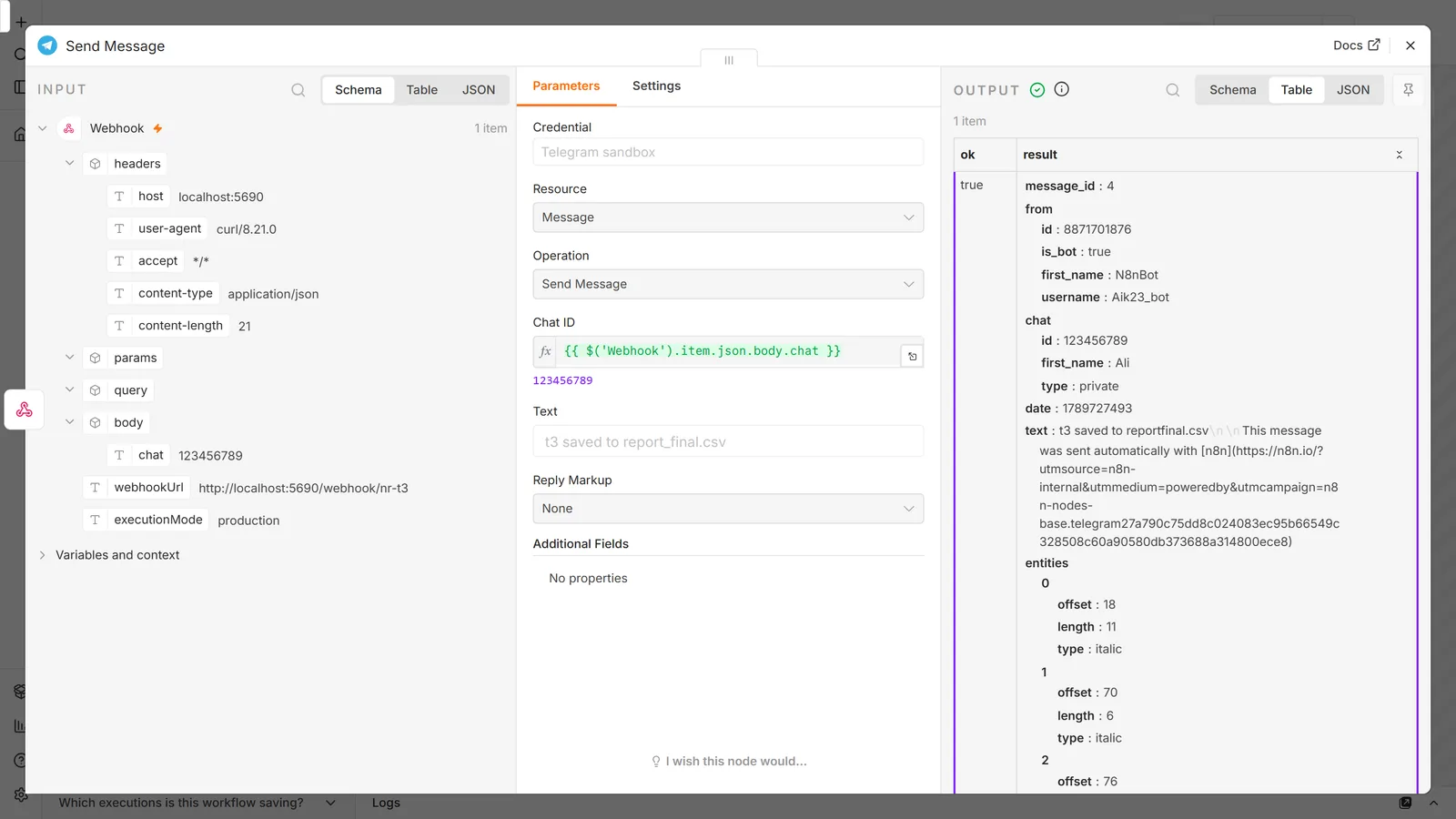
Use HTML unless you have a specific reason not to. MarkdownV2 looks like the modern option and is the biggest source of avoidable errors on this node, because it requires escaping a long list of reserved characters, including the period. A message ending in a normal sentence full stop fails to parse. We sent *t4* ends with a sentence. and got back Bad Request: can't parse entities: Character '.' is reserved and must be escaped with the preceding '\'. MarkdownV2 also quietly drops n8n's attribution line: the node only appends it in HTML and legacy Markdown modes.
HTML needs only <b>, <i>, <code>, <pre>, and <a href="">, and it doesn't blow up on punctuation:
<b>Deploy finished</b>
Build <code>a1b2c3d</code> is live.
<a href="https://example.com/logs">View logs</a>
Two other fields worth knowing:
- Disable Notification: delivers silently. Right for high-frequency or low-priority alerts.
- Disable WebPage Preview: already on by default in the current node version (1.2), so link preview cards don't appear unless you add this field and switch it off. Every message in our tests came back from Telegram with
link_preview_options: { is_disabled: true }.
Receiving messages with the Telegram Trigger
The Telegram Trigger is a separate node that starts a workflow when something happens in Telegram. It offers a long list of update types: Message, Edited Message, Channel Post, Callback Query, Inline Query, Poll Answer, Chat Member, Chat Join Request, and more, plus * for all updates. The field (Trigger On) is required and starts empty, so you have to pick.
Set this deliberately, and check it covers what you're actually sending. Choosing * means your workflow fires on events you never intended to handle, including your own bot's status changes. Message is broader than it sounds: in Telegram's model it's any new message (text, photo, document, voice note, sticker), so you branch on the content after the trigger rather than filter for it here. What a narrow selection does miss is the other update types: a trigger on Message alone ignores edits and button taps, silently, because from its side nothing relevant happened.
In groups, privacy mode limits what your bot can see. Telegram enables it by default, which means a bot added to a group only receives messages that are commands or that mention it, not ordinary conversation. If your group bot reacts only sometimes, that's why. Turn it off through BotFather with /setprivacy, then remove and re-add the bot to the group for the change to apply.
Three options are worth setting:
Download Images/Files fetches attachments and hands them to the next node as binary data rather than giving you a file reference you'd have to resolve yourself. Image Size controls which resolution you get.
Restrict to Chat IDs and Restrict to User IDs take comma-separated allowlists. For a bot that isn't meant to be public, set at least one of these. A Telegram bot's username is discoverable, and without a restriction anyone who finds it can trigger your workflow.
Unlike the Google Sheets Trigger, which polls on a schedule, this one is a genuine webhook. Telegram pushes updates to n8n the moment they happen. That's why it's instant, and also why it has the constraint in the next section.
The one-webhook-per-bot problem
This is the part that costs people an evening.
n8n gives a workflow two webhook URLs: a test URL used while you're clicking Execute workflow in the editor, and a production URL used when the workflow is published. Most triggers keep both registered side by side.
Telegram can't, because Telegram only allows a single registered webhook per bot. Whichever URL registered last wins. The Telegram Trigger even says so in a notice at the top of the node: "Due to Telegram API limitations, you can use just one Telegram trigger for each bot at a time."
Current n8n protects the obvious case. On n8n 2.33.7, clicking Execute workflow on a published Telegram workflow is refused outright:
Because of limitations in Telegram Trigger, n8n can't listen for test executions at the same time as listening for production ones. Unpublish the workflow to execute.
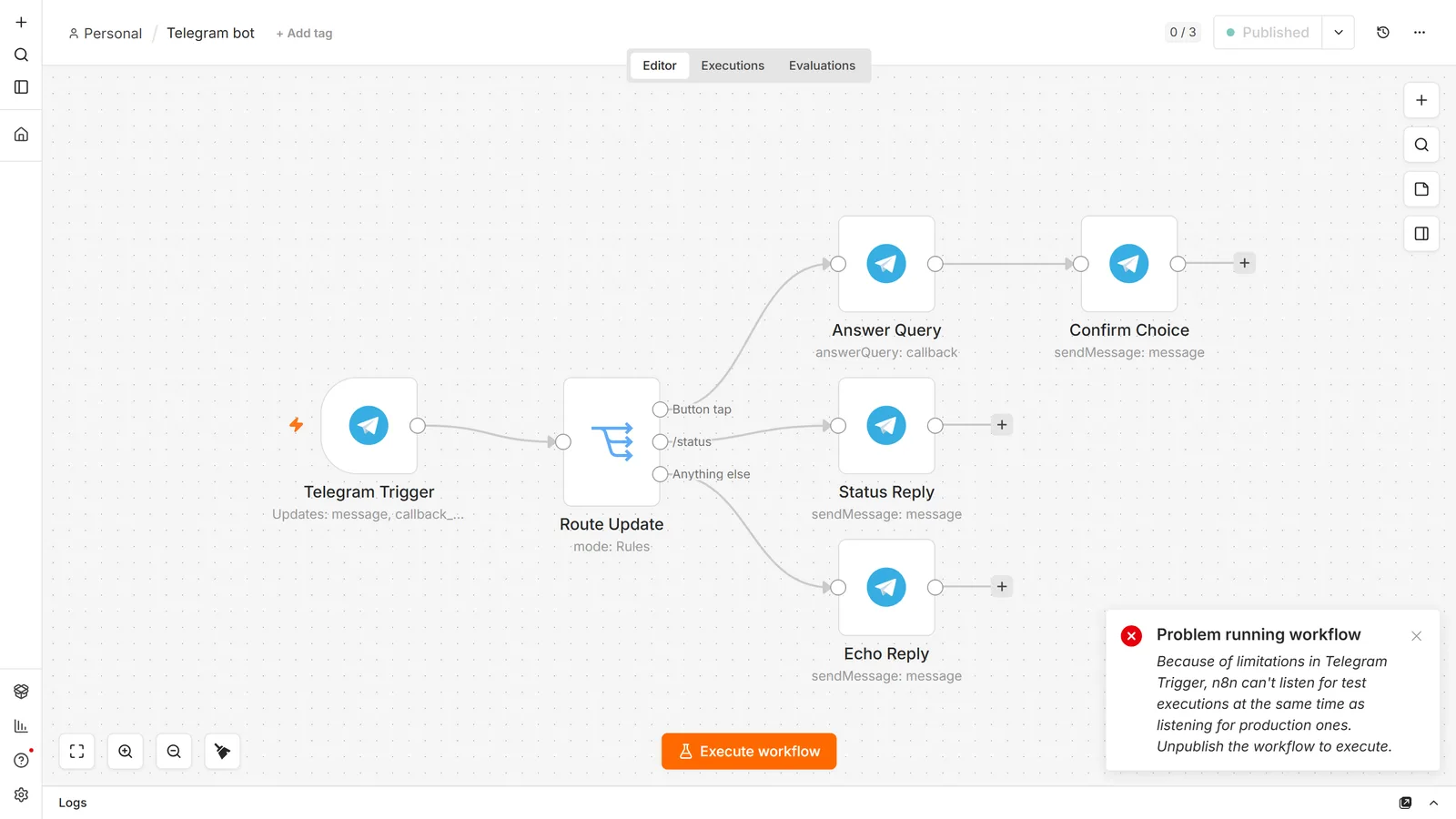
(The same guard covers the Slack Trigger and the Facebook Lead Ads Trigger.) So the classic version of this bug, debugging the live workflow in the editor, now produces an error instead of silence.
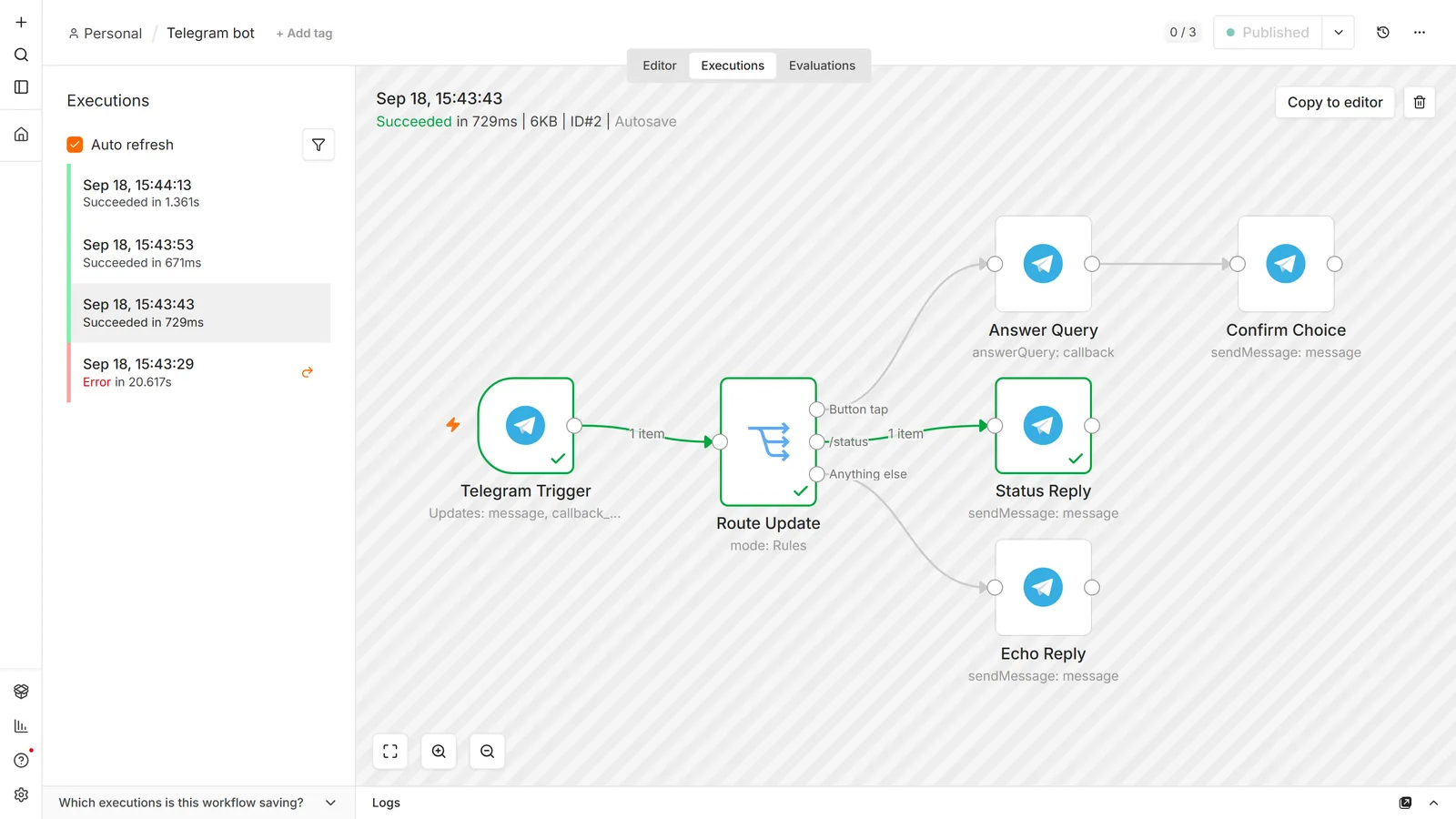
The guard doesn't see other workflows on the same token, and that's where the problem lives now. We tested it on n8n 2.33.7 with a real bot, the workflow below published and answering, and an unpublished "dev copy" of it using the same credential:
- We clicked Execute workflow on the dev copy. No warning. Telegram's
getWebhookInfoimmediately showed the dev copy's/webhook-test/URL in place of production. - We sent the bot
/status. The dev copy answered. The published workflow never ran. - When the test execution finished, n8n removed its test registration by calling Telegram's
deleteWebhook. That left the bot with no webhook at all, not the production one restored, while n8n still showed the main workflow as published. - We sent
ping. No reply, no execution, no error. Telegram held it as a pending update. - We unpublished and republished the main workflow. The production webhook came back, but
pingnever ran: the trigger re-registers withdrop_pending_updates(Trigger v1.3 and later), so Telegram discards everything that queued while the bot was headless.
So one test click on a copy takes the live bot down until someone republishes, and every message in between is lost. A second n8n instance, a local copy, or an old workflow on the same token does the same thing.
The fixes:
Create a second bot for development. Run /newbot again, make a separate n8n credential, and point your development copy of the workflow at it. This is the right answer for anything real: you get an isolated test environment and your live bot is never interrupted.
Or unpublish the workflow while testing, then republish it. Free, but your bot is down whenever you're working on it, messages sent meanwhile are dropped, and it's easy to forget the republish step.
If the live bot has gone quiet, republish it. Unpublishing and publishing again re-registers the production URL. Check with getWebhookInfo (see the FAQ below) that the URL is back.
If you run more than one workflow off the same bot, the same rule applies: they compete for the single webhook slot. Route all updates into one trigger and branch with a Switch node, as in the workflow above, rather than running several triggers on one token.
This isn't unique to Telegram. Slack has the same one-request-URL-per-app rule, and n8n puts the same guard on it. Slack is gentler in one way: you paste its Request URL by hand and n8n never changes it, so a test run on a copy can't knock a live Slack workflow over the way it does here. It's worth recognizing the pattern, because it shows up wherever a platform tracks a single callback address per integration.
Buttons, replies, and inline keyboards
Reply Markup on the Send Message operation turns a message into something interactive. Four types:
- Inline Keyboard: buttons attached under the message itself. The usual choice.
- Reply Keyboard: replaces the user's keyboard with preset options.
- Reply Keyboard Remove: dismisses that keyboard.
- Force Reply: makes the client open a reply box automatically.
Inline keyboard buttons emit a Callback Query rather than a message, so your Telegram Trigger must include that update type or the taps go nowhere.
One requirement people miss: after handling a callback you should run the Callback → Answer Query operation. Until you do, Telegram shows a loading spinner on the button in the user's client. The action succeeds, but the interface looks broken. Answer promptly, too: Telegram only accepts the answer for a short window. In our test the first tap after the instance started failed at Answer Query with Bad Request: query is too old and response timeout expired or query ID is invalid, while the next tap went through. Put Answer Query straight after the trigger's branch, before any slow work.
To reply in the same thread rather than as a new message, set Reply To Message ID from the incoming message. In forum supergroups, Message Thread ID keeps replies inside the right topic.
Sending photos and files
Message operations cover Send Photo, Send Document, Send Video, Send Audio, Send Animation, Send Sticker, Send Media Group, and Send Location.
Each takes either binary data from a previous node (enable Binary File) or a reference. For references you have two options: an HTTP URL that Telegram fetches itself, or a file_id from a file Telegram already has. Prefer file_id when resending something the bot has seen before; it's instant and skips the upload entirely.
Going the other way, File → Get File retrieves a file a user sent to your bot.
Two limits worth planning around: Send Animation is documented for GIFs and soundless H.264/MPEG-4 up to 50 MB, and Telegram's Bot API is far more restrictive about uploads than the regular Telegram client. If you're moving large files, check the current Bot API limits rather than assuming client behavior applies.
Common errors and fixes
Bad request: bad webhook: An HTTPS URL must be provided for webhook
Telegram won't send updates to anything but a public HTTPS address. Don't expect to see this exact text in n8n: when we published a Telegram Trigger on a plain http://localhost instance, n8n's log said only Activation of workflow ... did fail with error: "Bad request - please check your parameters" and kept retrying. The HTTPS message above is what Telegram returned when we made the same call directly. It appears when n8n sits behind a reverse proxy that hasn't been told its own public URL. Set the N8N_WEBHOOK_URL environment variable (WEBHOOK_URL before n8n 2.30) to your public HTTPS address and terminate TLS in the proxy. That variable is covered in the Docker setup guide, and the full proxy configuration in the self-hosting walkthrough.
Error: Forbidden: bot is not a participant of the channel
The bot isn't in the channel. Add it through the channel's settings by searching its username, and make it an administrator, which channels require for posting.
The bot never responds, and there's no error at all. Almost always the webhook collision above. Check whether another workflow or instance on the same token was executed or published since, then republish the live one.
The execution hangs, waiting for a trigger event. On self-hosted instances this is typically a reverse proxy without websocket support. Enable websocket proxying in Nginx, Caddy, Apache, or Traefik.
Bad Request: can't parse entities
Your Parse Mode doesn't match your text. Switch to HTML, or escape every reserved character MarkdownV2 requires.
Messages stop sending during a bulk run. Telegram's API caps sending at roughly 30 messages per second. Batch with a Loop Over Items node and add a delay between batches rather than firing a node once per recipient.
Messages arrive with an n8n advert appended. Turn off Append n8n Attribution under Additional Fields.
Bad Request: chat not found
For groups, you're probably missing the leading -. Group IDs are negative numbers, and a group ID sent without its minus sign returned exactly this error in our test. For a private chat, it can also mean the user never sent your bot /start.
Frequently asked questions
Can my bot message someone who hasn't contacted it first?
No. Telegram requires the user to start the conversation, which is a deliberate anti-spam rule. For groups and channels, the bot has to be a member.
Do I need a server to build a Telegram bot in n8n?
Only for receiving. Sending works from a local instance. The trigger needs a publicly reachable HTTPS URL because Telegram pushes updates to you.
Can two workflows use the same bot?
Not reliably. They compete for the bot's single webhook registration. Use one trigger and branch internally, or create a second bot.
Is a Telegram bot free?
Yes. Telegram's Bot API has no cost. Your only expense is wherever n8n runs.
How do I log messages to a spreadsheet?
Chain a Google Sheets node onto the Telegram Trigger and append a row per message. The pattern is in the Google Sheets integration guide.
Can the bot respond to slash commands like /status?
Yes. Commands arrive as ordinary message text, so branch on the text with a Switch node. Register the command list with BotFather via /setcommands so it autocompletes for users.
Can the bot handle voice notes?
Yes, and it's one of the better uses for a Telegram bot. Download the file with the Telegram node, then transcribe it. The OpenAI integration guide has that build step by step.
The trigger is active but no messages arrive.
A bot token can hold exactly one webhook at a time. If a second n8n instance, a local test copy, or an old workflow uses the same token, whichever registered last owns the delivery and every other one goes quiet, with no error anywhere, because nothing failed. Ask Telegram who holds it: https://api.telegram.org/bot<your-token>/getWebhookInfo returns the URL it will call. A /webhook-test/ path means someone's test run took it; an empty url means a test run ended and took the webhook with it. Either way, stop the others and republish the live workflow.
Messages arrive minutes late.
Telegram retries when your endpoint is slow or errors, and backs off between attempts, so one stuck execution delays everything queued behind it. That same getWebhookInfo response carries pending_update_count and last_error_message, which tell you whether you're looking at a backlog or a failure. A workflow that takes seconds to finish should hand the work to a sub-workflow and return immediately.
Official references worth bookmarking: n8n's Telegram node documentation and Telegram's own Bot API reference.
Want it prebuilt? Importable Telegram workflows (a command-driven bot with the @botname suffix already handled, and an error alerter) are among our n8n workflow templates. Need the public HTTPS URL the trigger depends on? That's how to run n8n self-hosted, and n8n in Docker if you're starting from scratch.