n8n OpenAI Integration: The Complete Setup Guide (2026)
Set up the n8n OpenAI integration: which of the two OpenAI nodes to use, the billing trap behind 429 errors, structured output, and controlling cost.
By Ali Ilyas · · Updated October 5, 2026
Wiring OpenAI into n8n is a five-minute job that regularly takes an afternoon. The integration is not difficult. Two things trip almost everyone, and neither is mentioned in the setup flow.
The first is that n8n has two different OpenAI nodes and they aren't interchangeable. Pick the wrong one and you'll spend twenty minutes trying to connect something that structurally cannot connect.
The second is that your OpenAI API access is not your ChatGPT subscription. Paying for ChatGPT Plus grants you exactly zero API credit, so the first call fails with a quota error while you're looking at a paid account and a perfectly valid API key.
Both are covered below, along with the builds worth copying and the failure modes that show up later.
What's on this page
- Where OpenAI shows up in n8n
- Two OpenAI nodes: which one you need
- Before anything else: API billing is not ChatGPT
- Adding the credential
- What the OpenAI node can do
- Chat Completions vs the Responses API
- Build 1: classify and route incoming messages
- Build 2: extraction you can trust downstream
- Build 3: transcribe a voice note
- The AI Agent path
- When a 429 doesn't mean slow down
- My model isn't in the dropdown
- Controlling what this costs
- Gotchas
- Frequently asked questions
Where OpenAI shows up in n8n
"n8n OpenAI" covers more surface than one node, and knowing the map first saves you searching for a node that was never the right one:
| You want to | Use | Covered in |
|---|---|---|
| Make one call — summarise, classify, transcribe, generate an image | OpenAI app node | This guide |
| Give a model to something that needs one | OpenAI Chat Model sub-node | Below |
| Run a fixed prompt over your data, provider-agnostic | Basic LLM Chain and the other chain nodes | LangChain in n8n |
| Let the model choose which action to take | AI Agent | Building an AI agent |
| Answer from your own documents | Embeddings OpenAI plus a vector store | RAG chatbot |
| Reach OpenRouter, Groq, Ollama or another compatible endpoint | The same OpenAI credential with a custom base URL | Below |
Everything on that list uses the same credential, so the billing and quota sections here apply to all of them. The rest of this page is the app node and the credential layer, which is where the time actually goes.
Two OpenAI nodes: which one you need
Search the node panel for "OpenAI" and you'll get two results with near-identical names. They do different jobs and connect differently:
| OpenAI (app node) | OpenAI Chat Model (sub-node) | |
|---|---|---|
| Runs on its own | ✅ | ❌ Never |
| Where it sits | In the main workflow flow | Attached underneath an AI Agent or Chain |
| Connector | Standard input/output | Small connector on the parent node's underside |
| Use it for | A specific call: summarise this, transcribe that, generate an image | Supplying the brain to an Agent that decides what to do |
The OpenAI node is an action. It goes in your flow like any other node, takes input, calls the API once, returns output. If you want "summarise this email and put it in a spreadsheet", this is your node.
The OpenAI Chat Model is not an action. It is a component. It provides a model to a parent node that needs one, and it cannot execute by itself. If you drag it onto a blank canvas it will sit there with nowhere to plug in.
This is the source of two very common frustrations:
- "I can't connect the Chat Model to my workflow." Correct, you can't. It connects to the small connector underneath an AI Agent, not into the main flow.
- "The template I imported has a node with no model setting." You're looking at the Agent. The model is on the sub-node hanging below it. Reading an imported workflow before running it saves this confusion and worse. See how to read an imported workflow before you run it.
Get this straight first and the rest is ordinary integration work.
Before anything else: API billing is not ChatGPT
One exception first. On n8n Cloud Starter and Pro, from n8n 2.36.0, the credential field on supported nodes, OpenAI among them, offers Use Gateway credits. n8n calls OpenAI on your behalf and bills each request to your instance's prepaid Gateway balance, so you need no OpenAI account and no key. It isn't available on Cloud Enterprise or self-hosted n8n, operations the gateway doesn't cover are hidden while it's selected, and rates are on n8n's service pricing page. Details are in n8n's Gateway credits docs. We haven't run this route ourselves. Everything below applies when you bring your own OpenAI API key, which is the only option on self-hosted n8n.
This deserves its own section because it wastes more time than any technical problem in the integration.
ChatGPT and the OpenAI API are separate products on separate billing systems. A ChatGPT Plus, Pro, or Business subscription gives you nothing on the API. There's no conversion, no included allowance, no shared quota. OpenAI's help centre has a dedicated article explaining that you can't move one to the other.
So before you touch n8n:
- Go to the API platform (
platform.openai.com), which is a different surface fromchatgpt.com. - Add a payment method and buy prepaid credits.
- Then create your API key.
Do it in that order. A key created on an account with no billing set up is syntactically valid and functionally dead, because every call returns a quota error. That combination, a real key that always fails, is what sends people looking for a bug in n8n.
One diagnostic worth knowing now, because it looks alarming: when calls are rejected for quota reasons, OpenAI blocks them before they count toward usage, so your usage dashboard shows zero tokens. Zero usage looks like "n8n isn't sending anything," and people go off debugging the workflow. It isn't. The requests arrived and were refused at the door.
Adding the credential
With billing sorted, this part is short. In OpenAI:
- Open the API keys page on the API platform.
- Select Create new secret key, optionally name it.
- Copy it now, because you can't view it again afterwards.
In n8n, add an OpenAI credential and paste the key. If your account belongs to more than one organisation, also set the Organization ID from your organisation settings page. n8n's docs flag the consequence: "API requests made using an Organization ID will count toward the organization's subscription quota." Get it wrong and you'll bill the wrong team, or hit a quota you don't control.
One naming ambiguity to clear up, because it catches self-hosted users: the n8n API key and the OpenAI API key are unrelated. n8n has its own API with its own keys under Settings → n8n API, used for controlling n8n programmatically. It has nothing to do with OpenAI. If that section is missing on your instance, N8N_API_DISABLED is set. See self-hosted n8n for environment variables. Nothing there affects your OpenAI connection.
What the OpenAI node can do
More than the text generation everyone uses it for. Current operations:
| Resource | Operations |
|---|---|
| Text | Message a Model · Classify Text for Violations |
| Image | Analyze Image · Generate an Image · Edit Image |
| Audio | Generate Audio · Transcribe a Recording · Translate a Recording |
| Video | Generate a Video |
| File | Upload a File · List Files · Delete a File |
| Conversation | Create · Get · Update · Remove a Conversation |
Three of these are underused and worth knowing about:
- Classify Text for Violations is the moderation endpoint. If you're posting model output to a public channel or accepting user-submitted text, this is a cheap guard.
- Analyze Image takes an image and a question about it. Reading a receipt, checking whether a photo shows a defect, extracting text from a screenshot, with no separate OCR service needed.
- Transcribe a Recording is speech-to-text, which turns voice notes into workflow input. Build 3 uses it.
That list is what a new OpenAI node shows on n8n 2.33.7, which is what we tested on. n8n's own docs page still lists Generate a Chat Completion and Generate a Model Response under Text. Neither exists on a node you add today. Message a Model is the current name, and it calls OpenAI's Responses API. If you import an older workflow, its OpenAI node keeps the version it was built with (1.x), and on that version Message a Model calls Chat Completions instead. Same label, different endpoint, and different output, which matters in the builds below.
Chat Completions vs the Responses API
OpenAI has two endpoints for generating text, and which one n8n uses depends on the node and its version, not on a menu choice:
| Node | Endpoint |
|---|---|
| OpenAI app node, added today (v2.x) | Responses API only. There is no Chat Completions operation on it. |
| OpenAI app node in an older imported workflow (v1.x) | Chat Completions |
| OpenAI Chat Model sub-node | Your choice, via the Use Responses API toggle. It is on by default on the current version (1.3). |
We confirmed this in n8n 2.33.7's node source and by running both versions against the API.
Chat Completions is the long-standing endpoint. It's stateless: you send the full message history every call, and managing conversation state is your job.
The Responses API is newer and does more per call. It supports an agentic loop with built-in tools, and it can maintain conversation state server-side via a conversation_id, which is what the Conversation operations in the table above are for.
Which to pick:
- Single-shot work (summarise, classify, extract, rewrite): either works. Chat Completions is the simpler mental model and what most examples assume.
- Multi-turn conversation where you'd otherwise be storing history yourself: the Responses API plus a conversation ID removes a whole chunk of state-management from your workflow.
- Anything pointed at a non-OpenAI endpoint: stay on Chat Completions.
/v1/chat/completionsis the interface third-party providers implement; the Responses API is a newer OpenAI-specific surface that many of them don't offer. Since the current app node only speaks the Responses API, use the OpenAI Chat Model sub-node with Use Responses API switched off (inside a Basic LLM Chain), or an HTTP Request node.
The toggle has one more consequence we hit while testing. An AI Agent node at version 2, which is what many imported templates contain, refuses a Chat Model that has the Responses API on. Add a fresh Chat Model under an old Agent and the run fails with "This model is not supported in 2 version of the Agent node. Please upgrade the Agent node to the latest version." Either upgrade the Agent (the current version, 3.1, accepted the same model in our test) or switch the toggle off.
Build 1: classify and route incoming messages
The highest-value AI workflow isn't generation, it's triage. Take anything inbound and decide what happens next.
-
Trigger: a Telegram message, a webhook, an email, a form submission.
-
OpenAI → Text → Message a Model. System prompt:
Classify the message into exactly one of:
sales,support,billing,spam. Reply with the single word and nothing else. If the message fits none of them, reply:other -
Switch node on the model's output, one branch per category. On a current node the label is at
{{ $json.output[0].content[0].text }}, not in a top-leveltextormessagefield. -
Actions: route sales to Slack, log support to Google Sheets, drop spam.
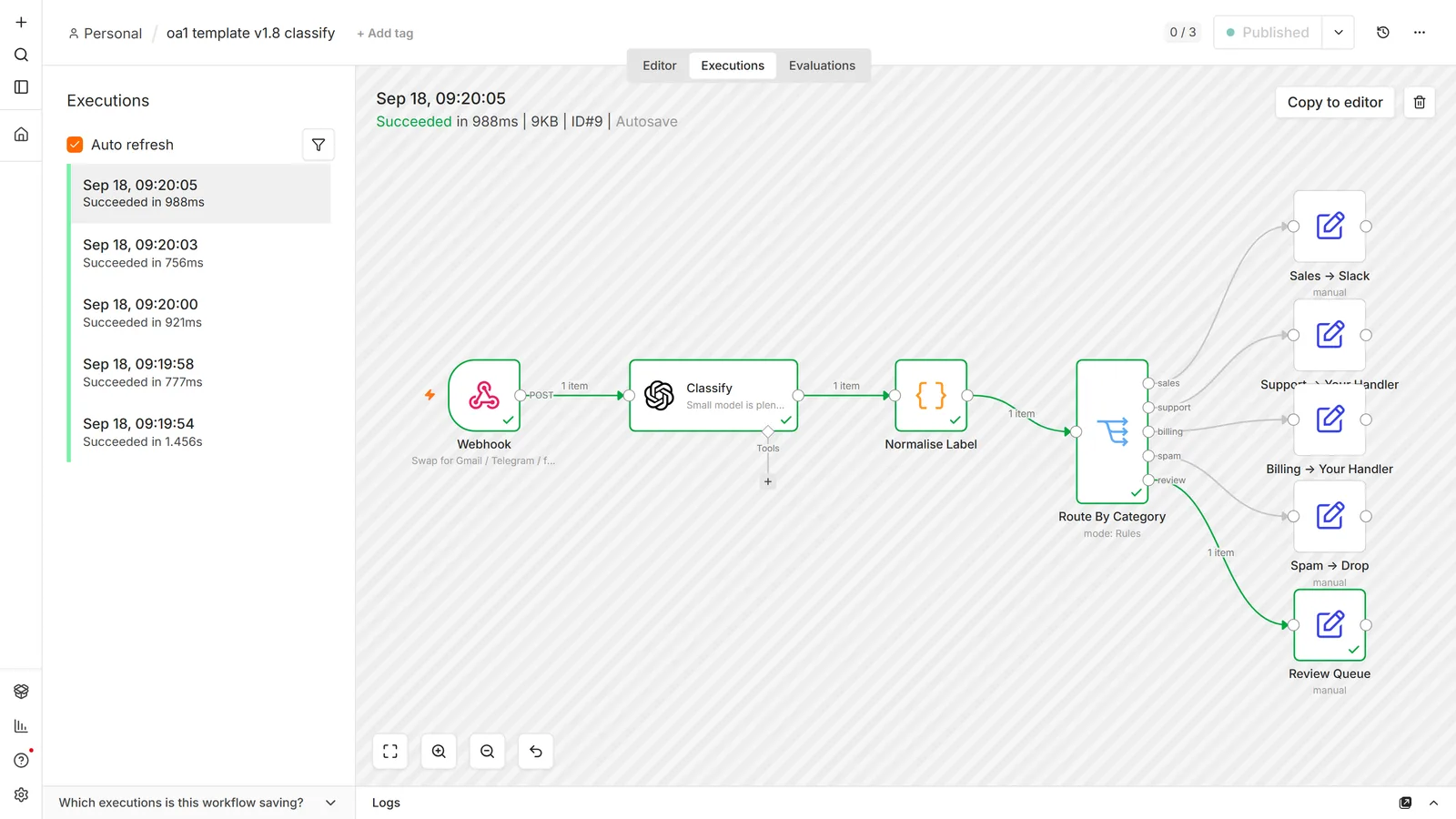
Three things make this reliable rather than nearly-reliable:
Constrain the output. "Reply with the single word and nothing else" is doing real work. Without it you get "This message appears to be about billing.", which no Switch node will match.
Give the model a way out. In our test, the same prompt without the other line classified the weather question as spam: a model told to pick one of four picks one of four. Without an escape word, off-topic messages get filed into a real category.
Add a fallback branch. Set the Switch node's fallback to a review queue rather than discarding unmatched items. Models occasionally return something outside your list, and silent discards are how you find out three weeks later that you lost sales leads. Our classify-and-route template normalises the label in a Code node first, so Sales. still matches sales.
Build 2: extraction you can trust downstream
Pulling structured fields out of unstructured text (invoice totals, contact details, order references) is where AI workflows earn their keep, and where they fail most quietly.
Ask for JSON explicitly and be exact about the shape:
Extract these fields from the text. Reply with JSON only, no markdown fences, no commentary.
{"company": string, "amount": number, "due_date": "YYYY-MM-DD", "reference": string}If a field is not present, use null. Never invent a value.
On a current node there's a better option than asking nicely: Options → Output Format → JSON Schema. Paste the schema there, and OpenAI constrains the reply to it. n8n then parses the reply for you, so the next node receives an object rather than a string it has to parse. We ran the same extraction both ways on gpt-4.1-mini. The prompt-only version returned clean JSON without fences, but as a string you have to parse yourself.
A schema fixes the shape, not the content. With due_date typed only as a string, one run returned "2026-10-14" and the next "14 October 2026". Both are valid strings. Adding "description": "ISO date, YYYY-MM-DD" to that field gave ISO dates on five runs out of five, but a description is guidance, not a guarantee.
Then, and this is the part people skip: validate before you trust it. A Code node or an IF node that checks the fields you actually depend on, with an explicit branch for failures.
The reason this matters is worth stating plainly, because it's the difference between a demo and a production workflow. A model that returns malformed or empty structure usually doesn't produce an error. The node succeeds, an empty object flows downstream, and the execution finishes green. You can have a zero-error-rate workflow writing bad data to your database for weeks. Nobody notices, because nothing failed.
So assert on content, not on absence of error: did the amount parse as a number, is the date in range, is the reference non-empty. Route anything that fails to a queue you look at.
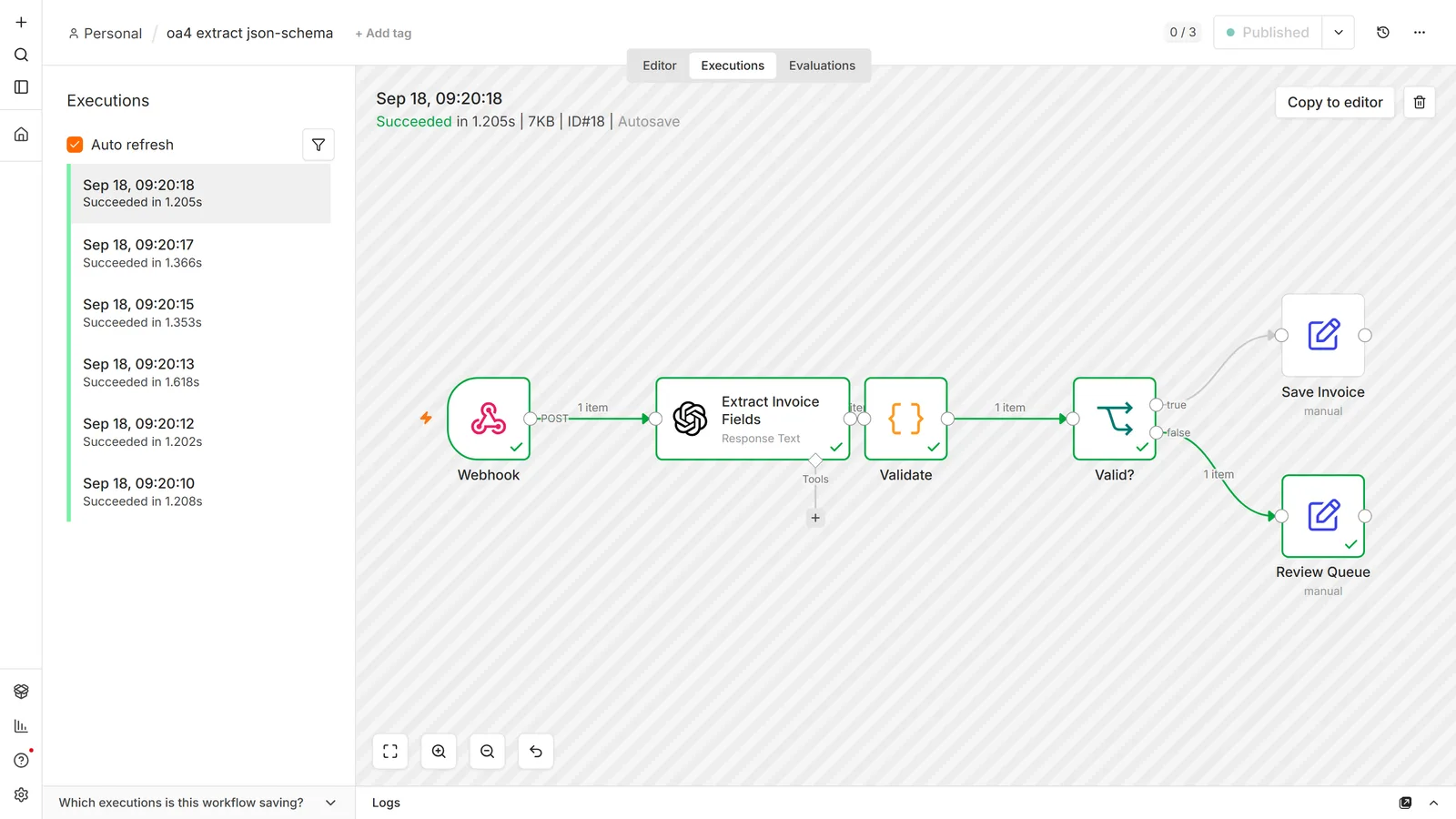
This is the same principle as monitoring workflows that never trigger. A green run is not evidence that anything happened.
Two prompt-level details that measurably reduce failures:
- Include a filled-in example that matches your schema exactly. If your example omits a field your schema requires, the model learns to omit it too. Simplifying the example "for readability" reintroduces the bug you were preventing.
- Say "no markdown fences" explicitly. Models like wrapping JSON in triple backticks, and that breaks naive parsing. Strip fences defensively in your parse step anyway.
Build 3: transcribe a voice note
A genuinely useful automation, and it uses the audio operation almost nobody touches.
- Telegram Trigger receives a voice message.
- Telegram → Get File to download the audio as binary data.
- OpenAI → Audio → Transcribe a Recording, pointed at that binary field.
- OpenAI → Text → Message a Model to clean up and summarise the transcript, which arrives as
{{ $json.text }}. - Append to Google Sheets or post to Slack.
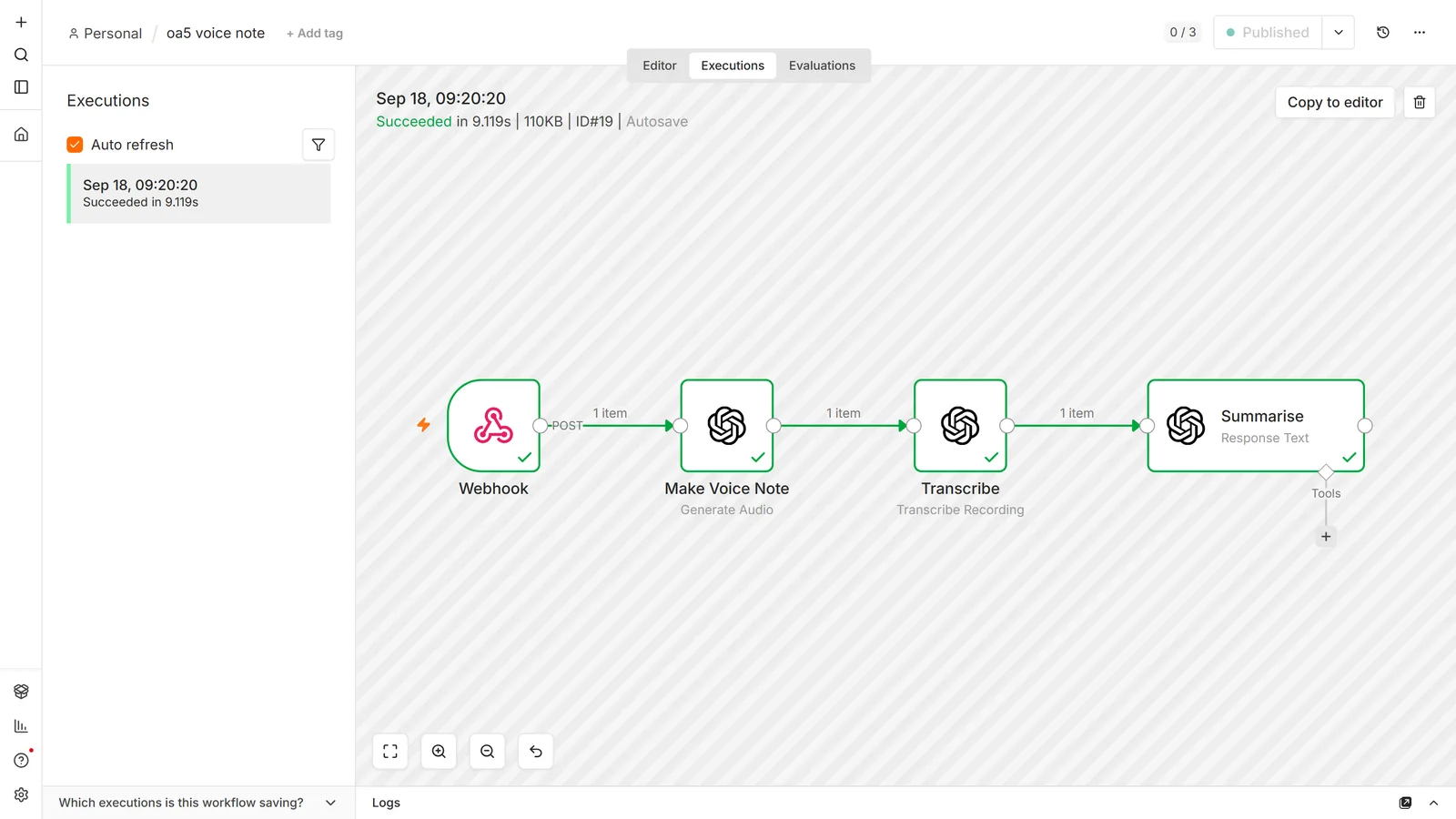
Voice note in, structured note out. Two practical notes: the transcription operation needs the binary property name to match what the previous node produced (the default on both sides is data), and there's a file-size ceiling on the endpoint, so long recordings need splitting first. The operation has no model selector: n8n 2.33.7 sends every transcription to whisper-1.
The AI Agent path
Everything above calls the model once with a fixed instruction. An AI Agent is different: it's given tools and decides which to call, in what order, and how many times.
Minimum viable setup:
- Add an AI Agent node.
- Attach an OpenAI Chat Model sub-node to the connector underneath it. This is where the model and its credential live.
- Optionally attach a memory sub-node so it remembers earlier turns.
- Attach tools: a Google Sheets node, an HTTP Request node, a sub-workflow.
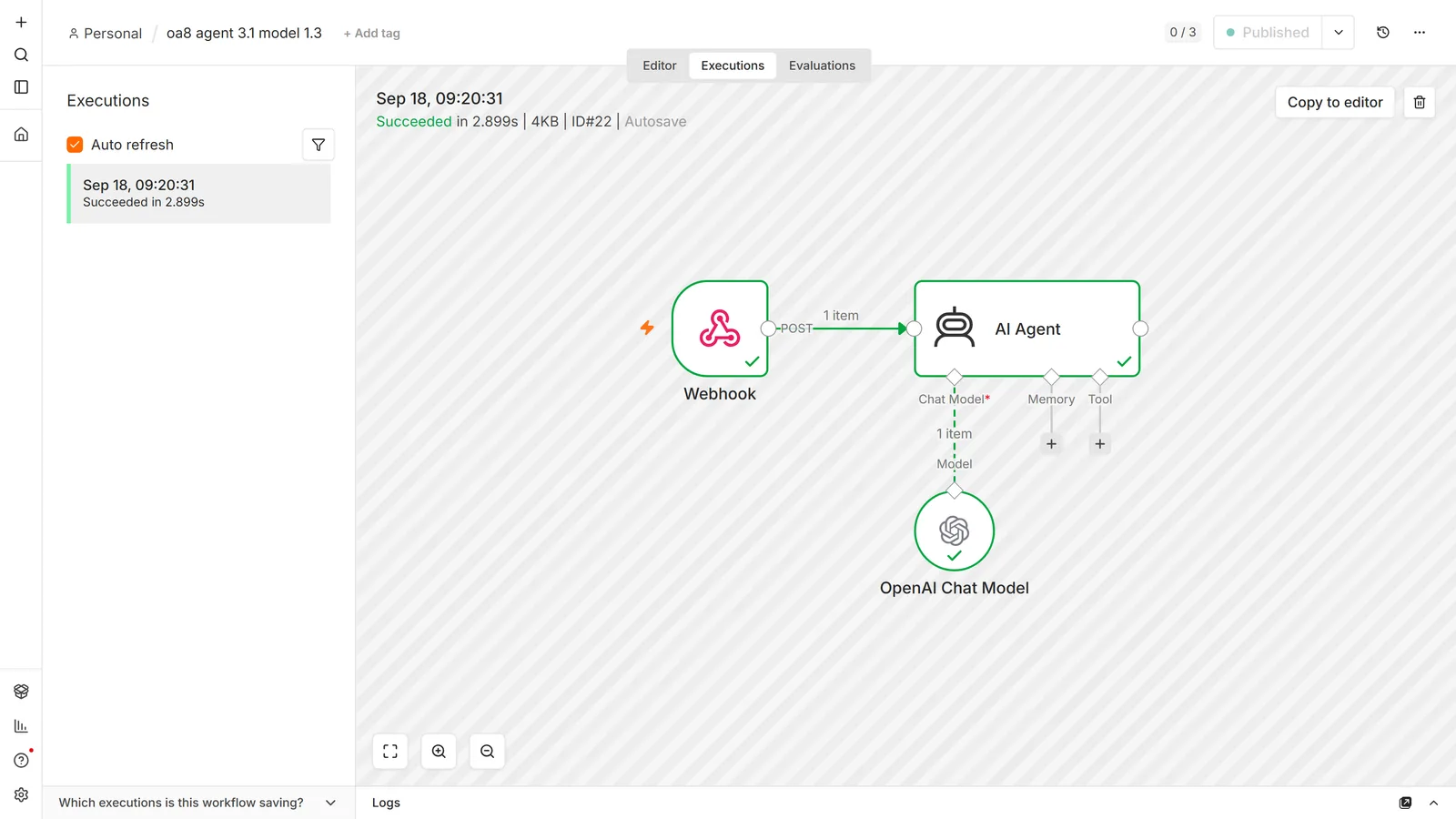
Two things to be aware of before you commit to this shape:
One run is many API calls. The agent reasons, calls a tool, reads the result, reasons again. A single execution can easily be five or ten model calls. That's the intended behaviour, and it's also why agent costs surprise people who budgeted per execution.
Sub-nodes resolve expressions differently. n8n's docs are explicit: in a sub-node, "expressions always resolve to the first item," not once per item. An expression that works correctly in a normal node can quietly use item one's value for every item when it's on a sub-node.
Agents get their own guide: how to build an AI agent in n8n covers tool descriptions, session memory, iteration limits, and the retry problem that makes agents send things twice. For most jobs, though (classify, extract, summarise, transcribe), the plain OpenAI node is cheaper, faster, and far easier to debug, because there's exactly one call to inspect.
When a 429 doesn't mean slow down
This is the error you will hit, and the reason it costs people hours is that two completely different problems both return HTTP 429. The fix for one does nothing for the other.
Read the error code, not the status code:
| Error code | What it means | Fix |
|---|---|---|
rate_limit_exceeded | Too many requests too fast. You have credit. | Slow down |
insufficient_quota | No credit, or a usage limit is capping you. Speed is irrelevant. | Add credit or raise the limit |
insufficient_quota is not a rate limit, and n8n makes it look like one. We hit this for real while testing this guide, on an account with a valid key and an empty balance. OpenAI's reply was unambiguous:
429 - {"error":{"message":"You have no credits remaining. Add credits to continue using the API ...",
"type":"insufficient_quota","code":"credit_balance_exhausted"}}
The headline n8n showed for the failed node was "The service is receiving too many requests from you". That's n8n's generic text for any 429, and it's the wrong diagnosis here. OpenAI's actual message sits in the error details underneath. Other accounts see the older wording, "You exceeded your current quota, please check your plan and billing details". Either way the instinctive fix is to add a Loop Over Items node and a Wait node and try again more slowly. That will never work. The request is being refused for billing reasons, and one call per minute is refused exactly as firmly as sixty. Open the error details and read the type field before you change anything.
Work through these in order:
- Is billing set up on the API platform at all? The most common cause by a distance, especially on new accounts. No payment method means no API access, whatever the key looks like.
- Do you have credit right now? Prepaid credits can simply run out. Check the billing overview. Auto-recharge prevents the repeat.
- Is a usage limit capping you? Organisation-level and project-level limits both exist. A project limit set to $5 stops you at $5 while the organisation shows plenty of credit, and this is the one people miss, because the number they're looking at is fine.
- Is the key attached to the funded account? Multiple accounts, or a personal key on a work organisation, produces exactly this error. Verify the organisation and project the key belongs to.
For genuine rate_limit_exceeded, throttling is the right answer: a Loop Over Items node with a Wait node between iterations, per n8n's own guidance. New accounts start on low rate tiers and the limits rise with spend history, so the same workflow that fails today may be fine next month.
If the error text n8n surfaces is too vague to act on ("Bad request - please check your parameters"), n8n's documented workaround is to reproduce the call with an HTTP Request node, which returns OpenAI's full error body instead of a summarised one. Ugly, effective, and worth ten minutes when you're stuck.
My model isn't in the dropdown
The model list isn't a static list n8n ships. Per the docs: "n8n dynamically loads models from OpenAI, and you'll only see the models available to your account."
So a missing model is an OpenAI access question, not an n8n bug:
- Newer models often require a verified organisation or a minimum spend tier before they appear.
- Credentials must be valid for the list to populate at all. An empty dropdown usually means the credential failed, not that you have no models.
- Self-hosted instances lag on node updates. A model released after your n8n version may need a node update as well as account access. If you're on Docker, the Docker guide covers updating cleanly.
Controlling what this costs
n8n is free to self-host. The API is not, and this is the line item that surprises people. See is n8n free for the full cost picture.
Set a hard limit at OpenAI first. Usage limits at the organisation level, and a separate limit per project. Do this before your first production run, not after the first bill. A runaway loop calling a model is one of the few n8n mistakes that can cost real money in an hour.
Give each workflow its own project and limit. Then a mistake in one experiment can't consume the budget your production workflow depends on, and per-workflow spend becomes visible without extra work.
Match the model to the job. Classification, routing, and extraction rarely need a frontier model. Reserve the expensive ones for genuinely hard reasoning, and be honest about which of your tasks that is.
Cap output length. Maximum Number of Tokens limits the completion, which is normally the more expensive half of a call.
Trim the input. Sending whole documents when you need one paragraph is the most common source of avoidable spend. Filter and slice before the model call, not after.
Watch the multipliers. An agent making ten calls per run, and a workflow that loops over 500 rows, multiply together. Test on three items before you point it at the full dataset, because the cost mistakes that hurt are all in the difference between a test run and a real one.
Gotchas
The credential validates, calls still fail. The key is well-formed and the account has no billing. Two different checks; only the first is local.
Temperature 0 is not determinism. It reduces variation; it doesn't guarantee identical output. Don't build logic that depends on byte-identical responses across runs.
Long inputs fail on context, not on quota. A large document plus a long prompt can exceed the model's context window. That's a different error from insufficient_quota, and the fix is chunking, not credit.
Binary property names must match. Audio and image operations read a named binary field. If the upstream node produced data and the OpenAI node is looking for file, you get an empty-input error that reads like an API problem.
Rotating a key kills every workflow using that credential. They share one credential record. Rotate deliberately, and update it in n8n immediately.
The model will happily invent things. "If a field is not present, use null. Never invent a value." belongs in every extraction prompt, and you should still validate afterwards.
Frequently asked questions
Does ChatGPT Plus include API access?
No. They're separate products with separate billing. With your own API key you need prepaid credits on the API platform, regardless of what you pay for ChatGPT. On n8n Cloud Starter and Pro you can skip the OpenAI account entirely with Gateway credits.
Why do I get insufficient_quota when my account shows credit?
Usually a usage limit rather than the balance, so check project-level limits as well as organisation-level ones. Also verify the key belongs to the funded organisation.
Is insufficient_quota a rate limit? Will waiting help?
No, and no. It's HTTP 429 like a rate limit, but it's a billing refusal. Adding Wait nodes won't fix it.
Why does my OpenAI usage dashboard show zero tokens?
Rejected requests are blocked before they count toward usage. Zero usage alongside errors is consistent with a billing problem, not with n8n failing to send.
What's the difference between the OpenAI node and the OpenAI Chat Model?
The OpenAI node runs on its own in the flow. The Chat Model is a sub-node that supplies a model to an AI Agent or Chain and cannot run by itself.
Can I use OpenAI on the free self-hosted version of n8n?
Yes. Every AI node is in the free Community edition. You pay OpenAI for tokens, not n8n for the node.
Do I need an AI Agent, or is the OpenAI node enough?
The OpenAI node is enough whenever the steps are fixed. Use an AI agent only when the model needs to decide which action to take.
Should I use Chat Completions or the Responses API?
On a new OpenAI app node you don't get a choice: it only uses the Responses API. The choice lives on the OpenAI Chat Model sub-node's Use Responses API toggle. Use Chat Completions for any non-OpenAI endpoint and under an AI Agent at version 2. Use the Responses API when you want server-side conversation state or built-in tools.
How do I get reliable JSON out of the model?
Specify the exact schema, forbid markdown fences, include a matching example, and validate the result with an explicit failure branch. Don't assume success because the node didn't error.
Why is my model missing from the dropdown?
Your account doesn't have access to it, or the credential isn't working. n8n only lists models your key can actually use.
How do I stop a workflow running up a large bill?
Set usage limits at OpenAI, one project per workflow, cap max tokens, and test on a handful of items before running the full set.
Why is the OpenAI node so slow?
Usually the model rather than n8n. Reasoning models spend real time before the first token, and long prompts add more. Time the same request with curl. If it matches, n8n isn't the bottleneck. When n8n is the cause, it's almost always one request per item over a long list, which serialises hundreds of calls; cut the item count or batch them.
Why does the API give different answers than ChatGPT?
They aren't the same product. chatgpt.com wraps your message in its own system prompt, tools, and retrieval, on a model version you don't get to pick. The API sends exactly what you send and nothing else. Closing the gap means naming the model explicitly, writing your own system message, and setting temperature on purpose instead of inheriting a default.
Can I point the OpenAI node at OpenRouter, Groq, or a local model?
Yes, through the credential's base URL field, with that provider's key and model names. Mind which endpoint the node calls, though. OpenRouter, Groq, vLLM and Ollama all implement Chat Completions, but a new OpenAI app node only calls the Responses API. The dependable route is the OpenAI Chat Model sub-node with Use Responses API switched off. The model dropdown often won't populate against a third-party base URL; switch the field to By ID and type the name.
How do I see how many tokens a run used?
Not from the output item by default. We checked on n8n 2.33.7. With Simplify Output on (the default), the OpenAI node outputs only the message, and n8n records the token counts in the run's metadata, which you see in the execution log but can't reference downstream. Switch Simplify Output off and the full API response comes through, including usage with input_tokens, output_tokens and total_tokens. Under an AI Agent, the Agent's output is just output; the counts are recorded against the OpenAI Chat Model sub-node, once per model call. n8n doesn't total your spend anywhere; that lives in OpenAI's usage dashboard. For per-workflow tracking, turn Simplify Output off and write usage.total_tokens to a sheet on every run.
Primary references: n8n's OpenAI node docs, the OpenAI node common issues page, and the OpenAI Chat Model sub-node reference.
Next steps: if you're not running n8n yet, start with the self-hosting guide. To feed real data into these builds, the Google Sheets, Telegram, and Slack guides cover the connections you'll want, and our free n8n workflow templates are importable starting points.